Knowledge Base
Overview
The osTicket Knowledge Base was configured to provide users with self service guidance for common IT Support issues.
The objective was to reduce unnecessary ticket escalation for routine problems while giving users clear, safe troubleshooting steps that can be followed without advanced technical knowledge.
The articles were written from an end user perspective, using simple instructions and avoiding unnecessary technical commands where a graphical Windows solution was sufficient.
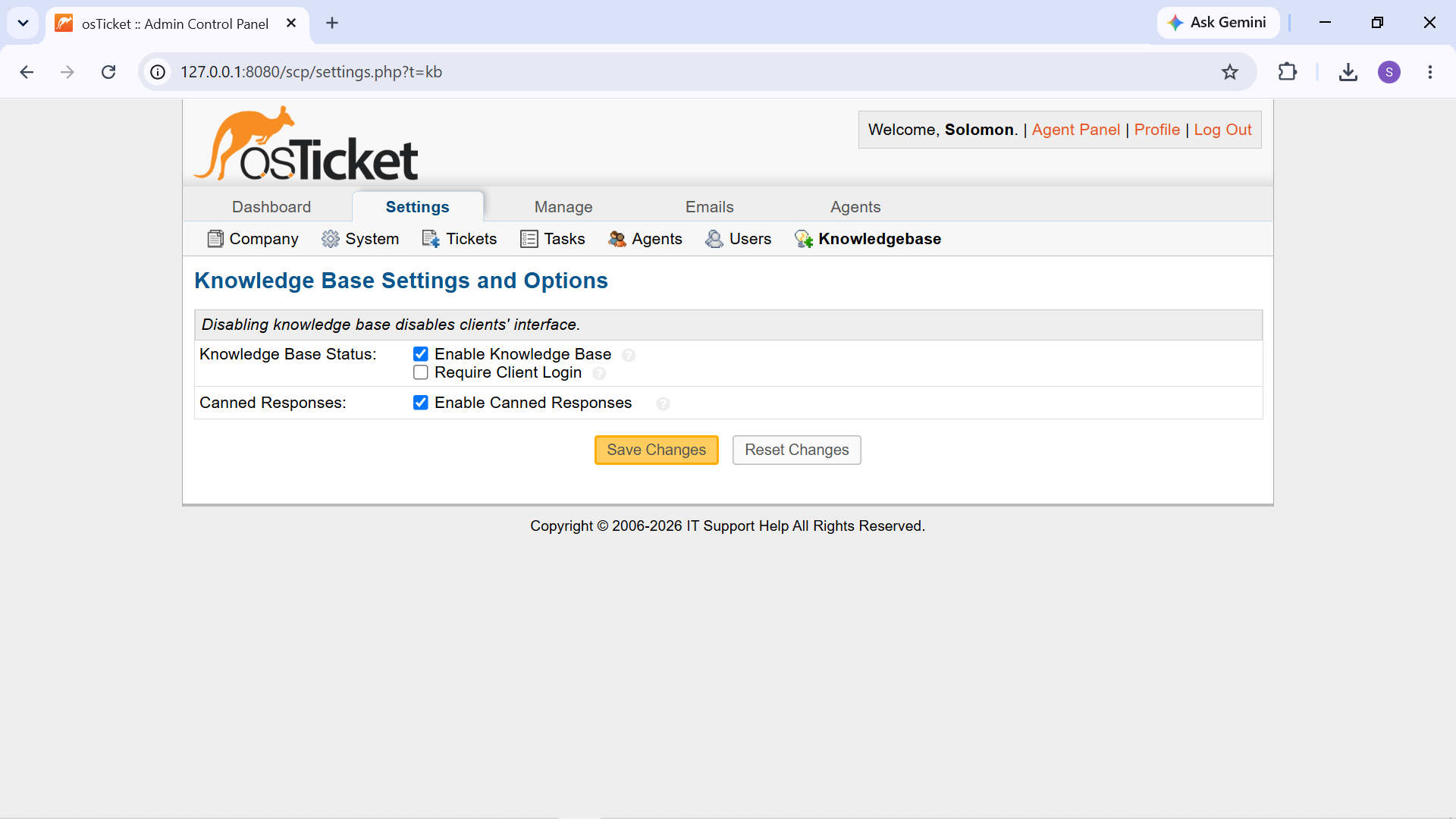
osTicket Knowledge Base configured for self-service support resources.
Knowledge Base Categories
Knowledge Base categories were created to organize troubleshooting information by support area.
The categories provide a structured way for users to find relevant information instead of searching through one large collection of articles.
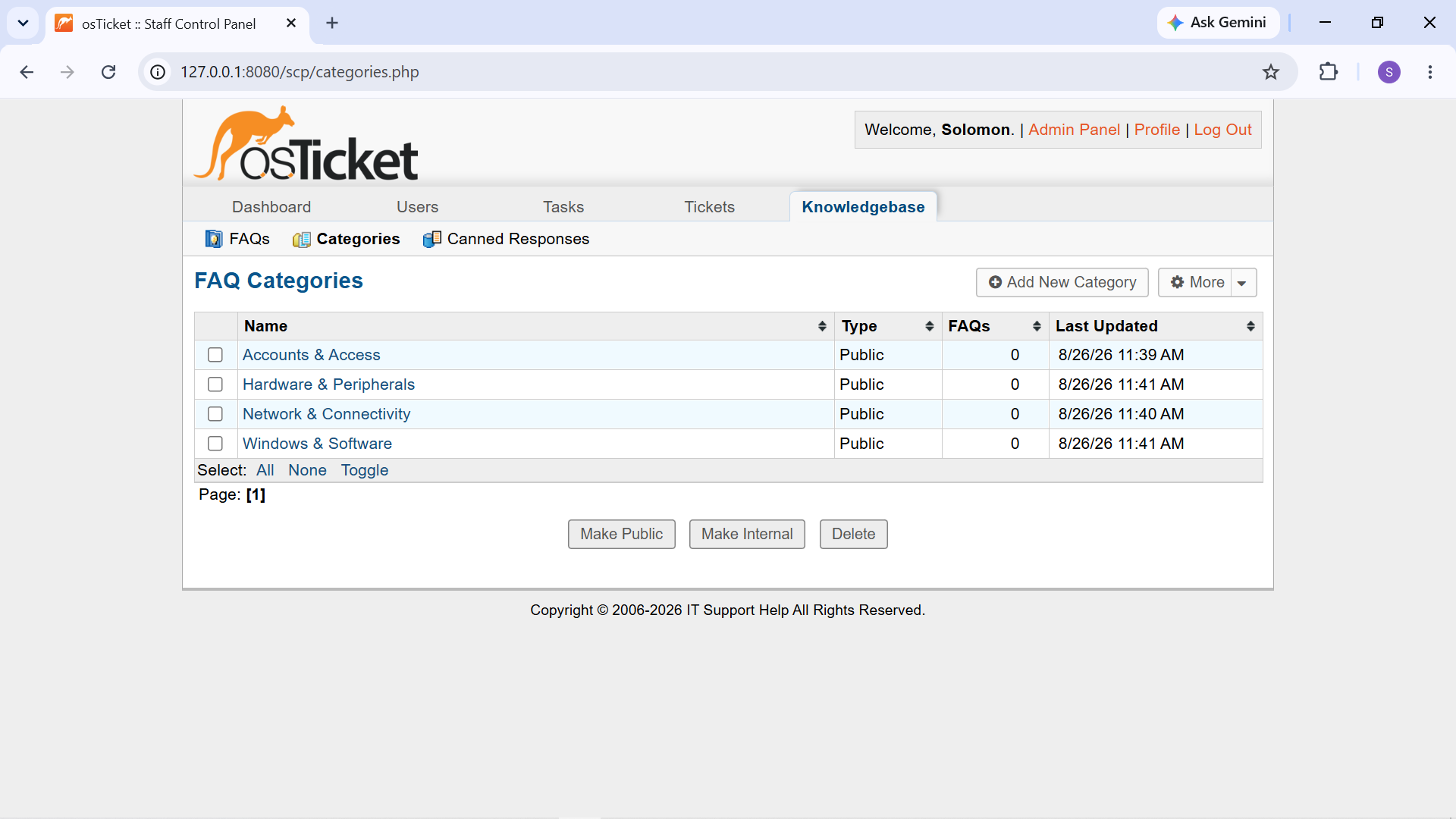
Knowledge Base categories used to organize troubleshooting resources.
Troubleshooting FAQs
Eight public FAQs were created to provide users with practical self-service guidance for common Level 1 IT Support issues.
The FAQs were organized into four support categories:
- Windows & Software
- Network & Connectivity
- Accounts & Access
- Hardware & Peripherals
Each article provides simple troubleshooting steps that an end user can perform safely before escalating the issue to IT Support.
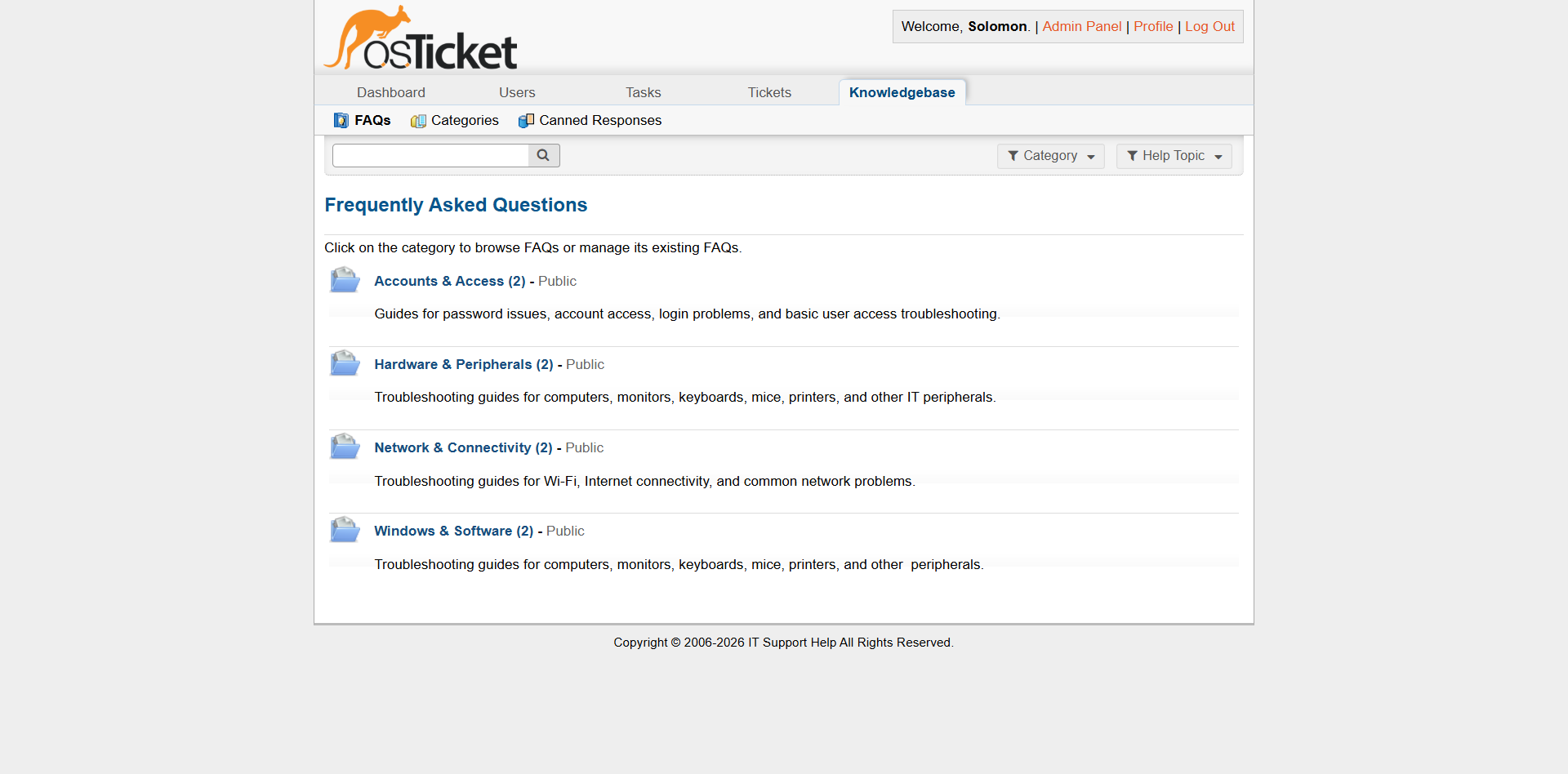
Public Knowledge Base FAQ listing showing the available troubleshooting resources.
Windows & Software
The Windows & Software category contains guidance for common workstation and application problems.
1. Windows Computer Running Slowly
This FAQ provides users with basic steps for troubleshooting slow Windows performance.
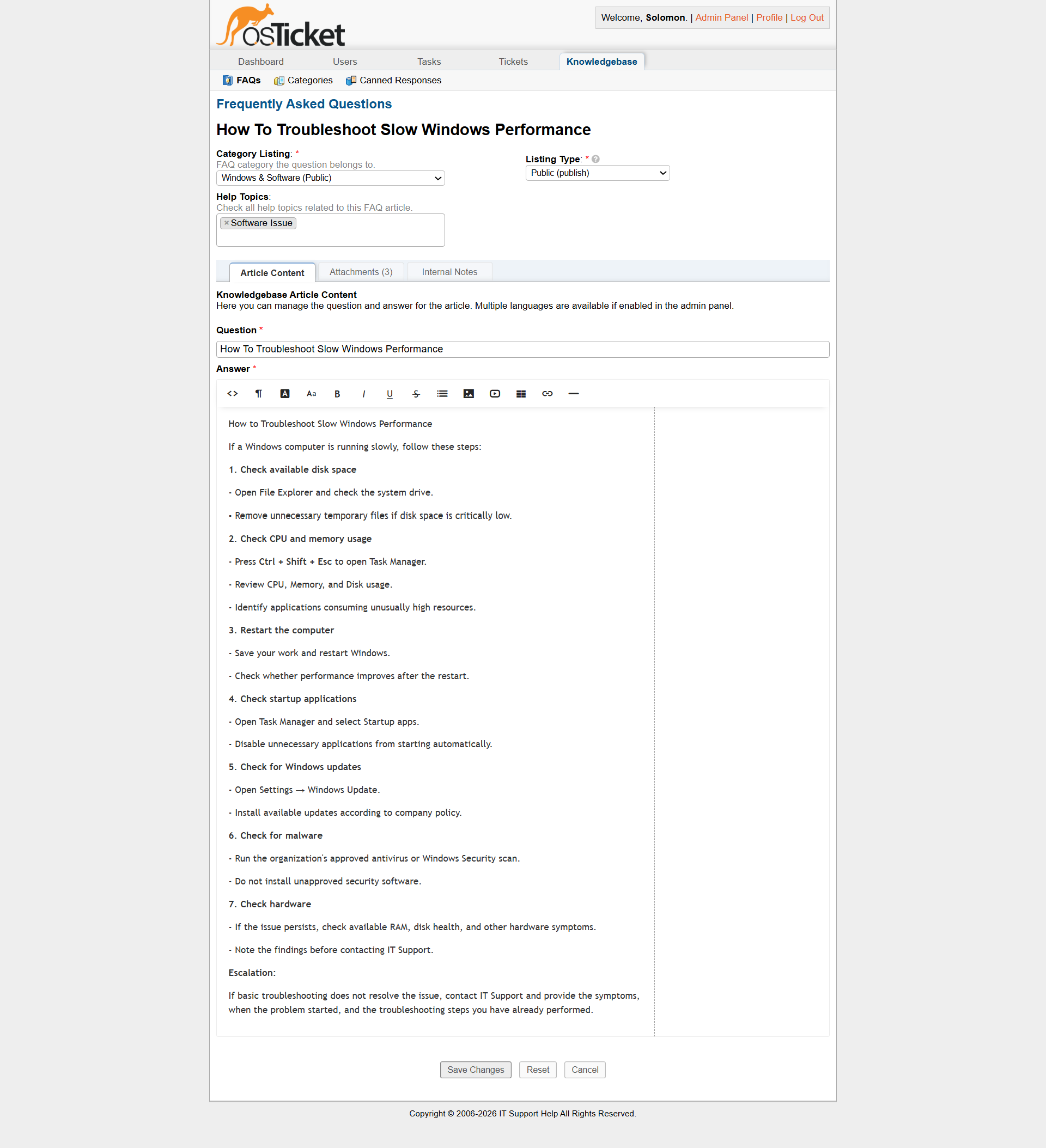
FAQ providing end-user troubleshooting guidance for slow Windows performance.
2. Windows Application Not Responding
This FAQ provides troubleshooting steps for applications that become unresponsive during normal use.
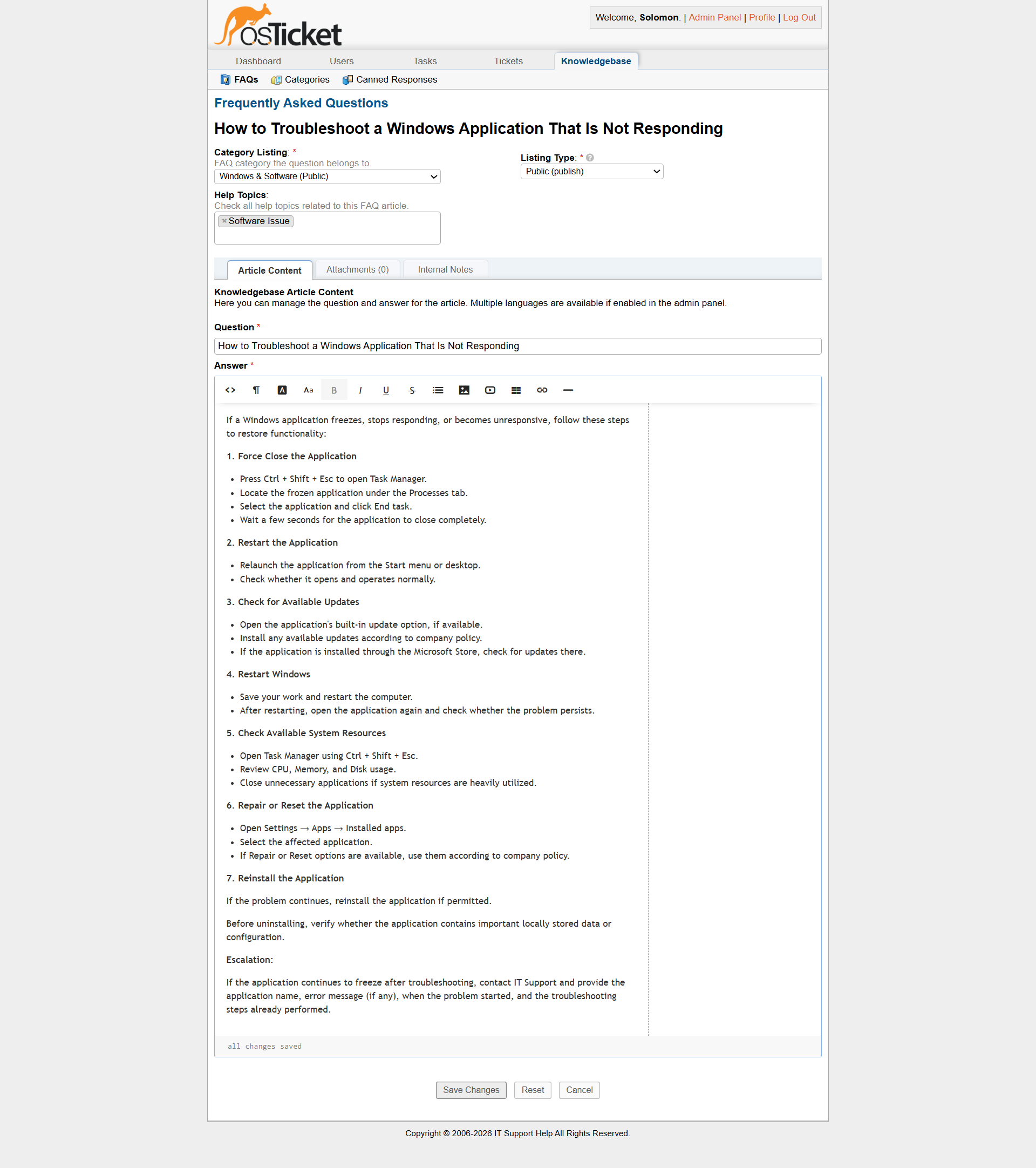
FAQ providing troubleshooting guidance for an application that is not responding.
Network & Connectivity
The Network & Connectivity category contains guidance for common Wi-Fi and Internet access problems.
3. Wi-Fi Connectivity Problems
This FAQ provides basic troubleshooting steps for users experiencing Wi-Fi connectivity problems.
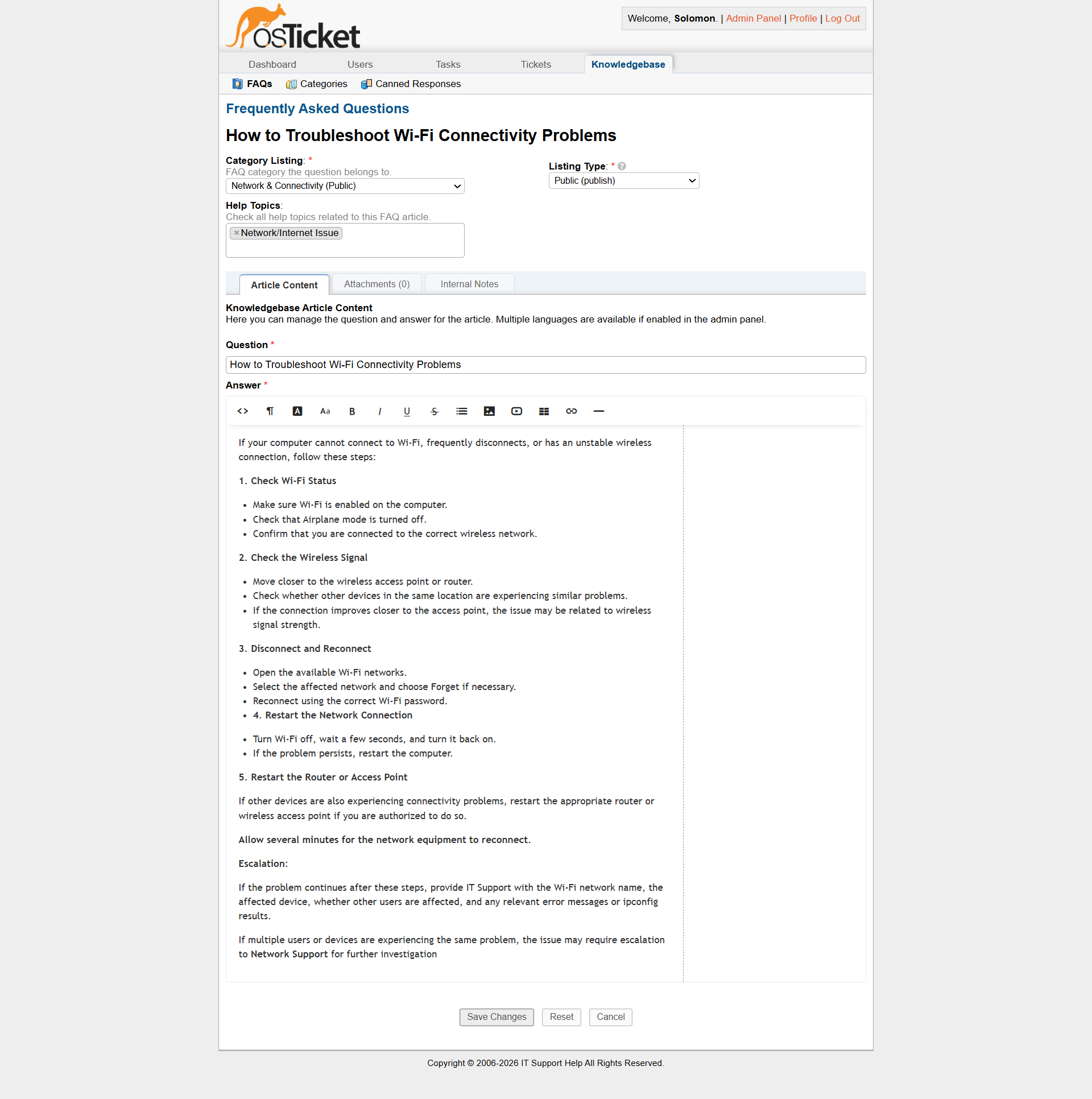
FAQ providing troubleshooting guidance for Wi-Fi connectivity problems.
4. Connected to Wi-Fi but No Internet Access
This FAQ addresses situations where a computer reports that it is connected to Wi-Fi but cannot access the Internet.
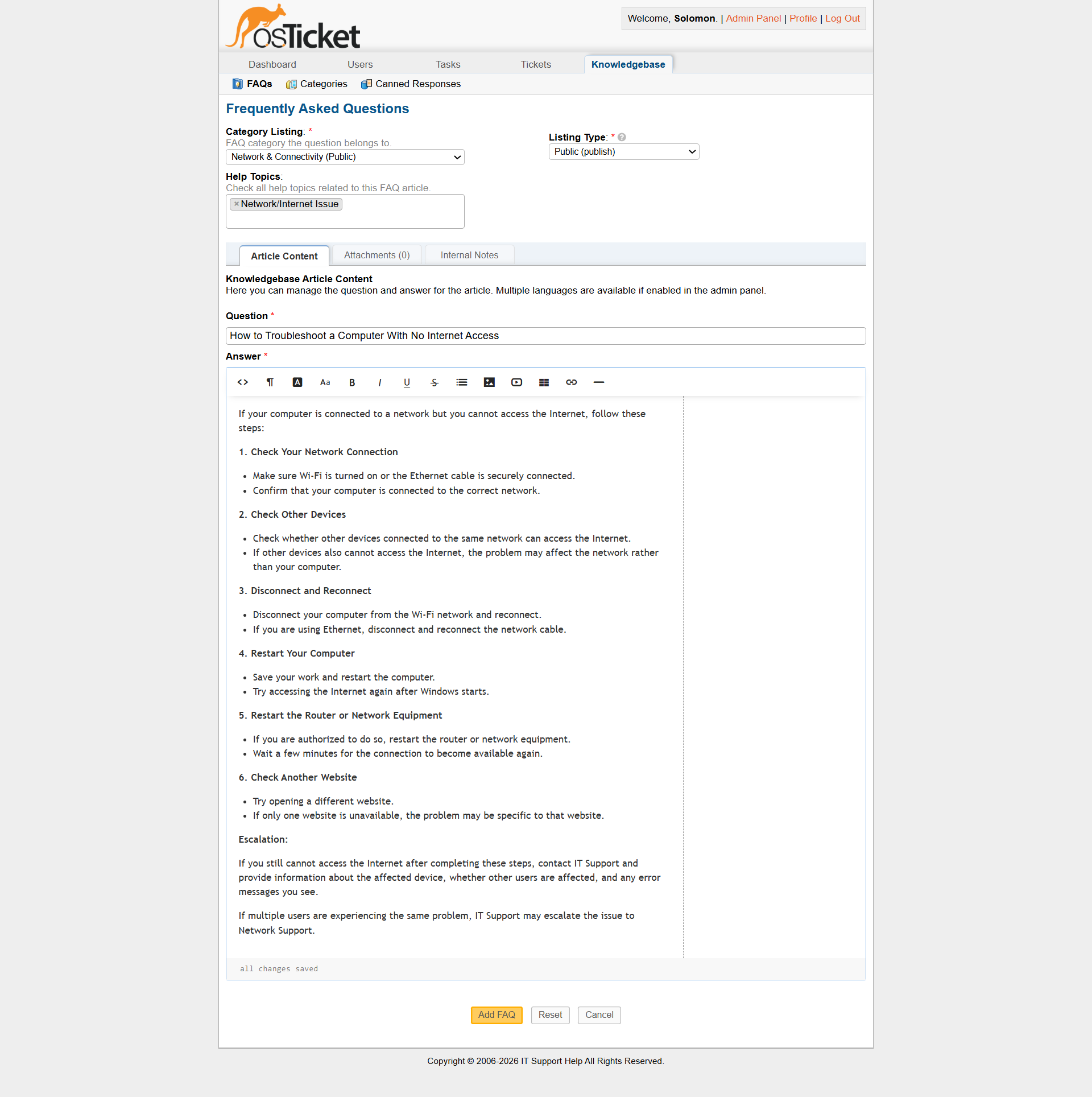
FAQ providing troubleshooting guidance for a computer connected to Wi-Fi without Internet access.
Accounts & Access
The Accounts & Access category contains guidance for common authentication and account-access problems.
5. Account Locked
This FAQ explains what users should do when their account becomes locked.
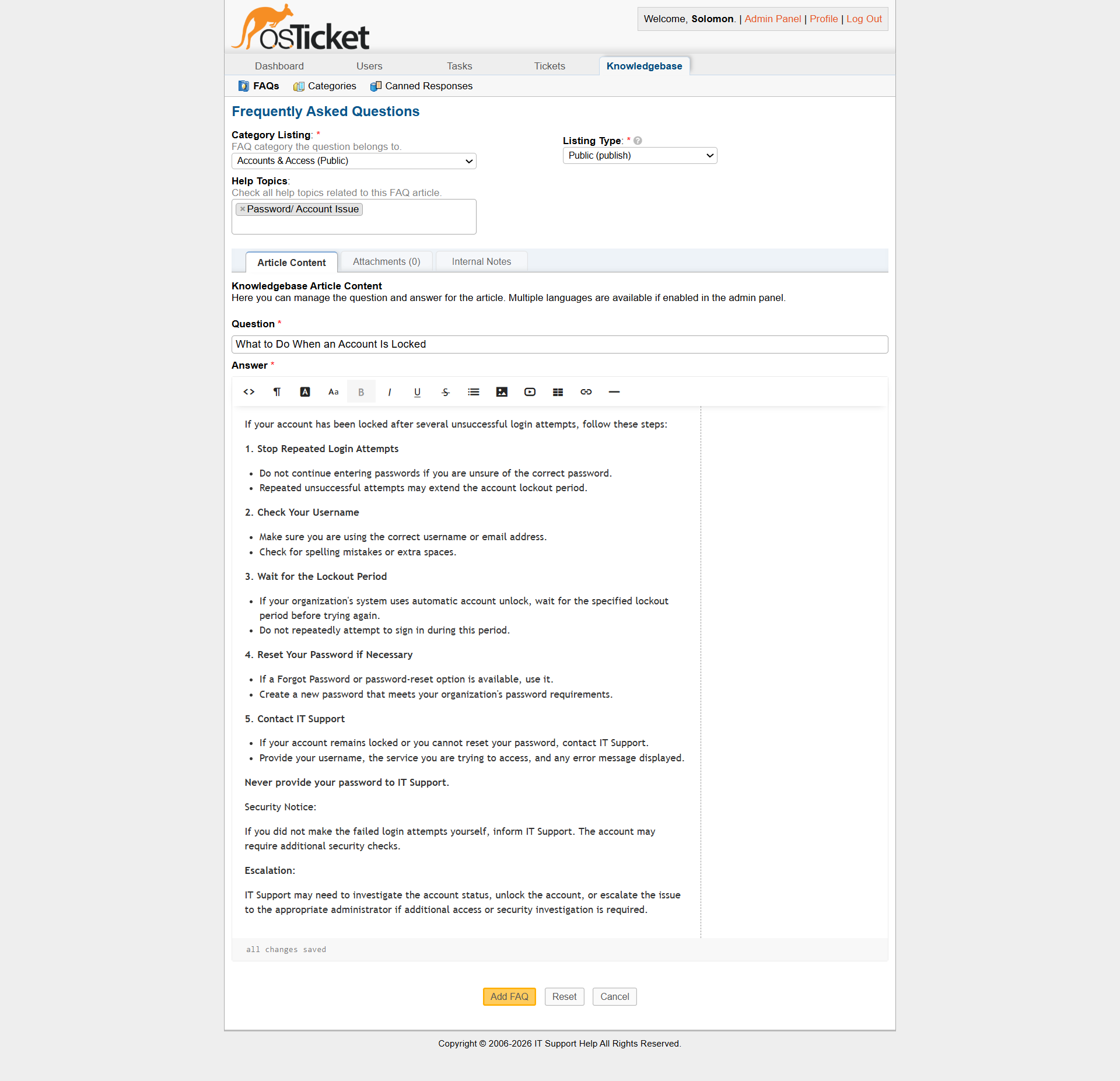
FAQ providing guidance for users experiencing an account lockout.
6. Login Problem
This FAQ provides troubleshooting guidance for common Windows login problems.
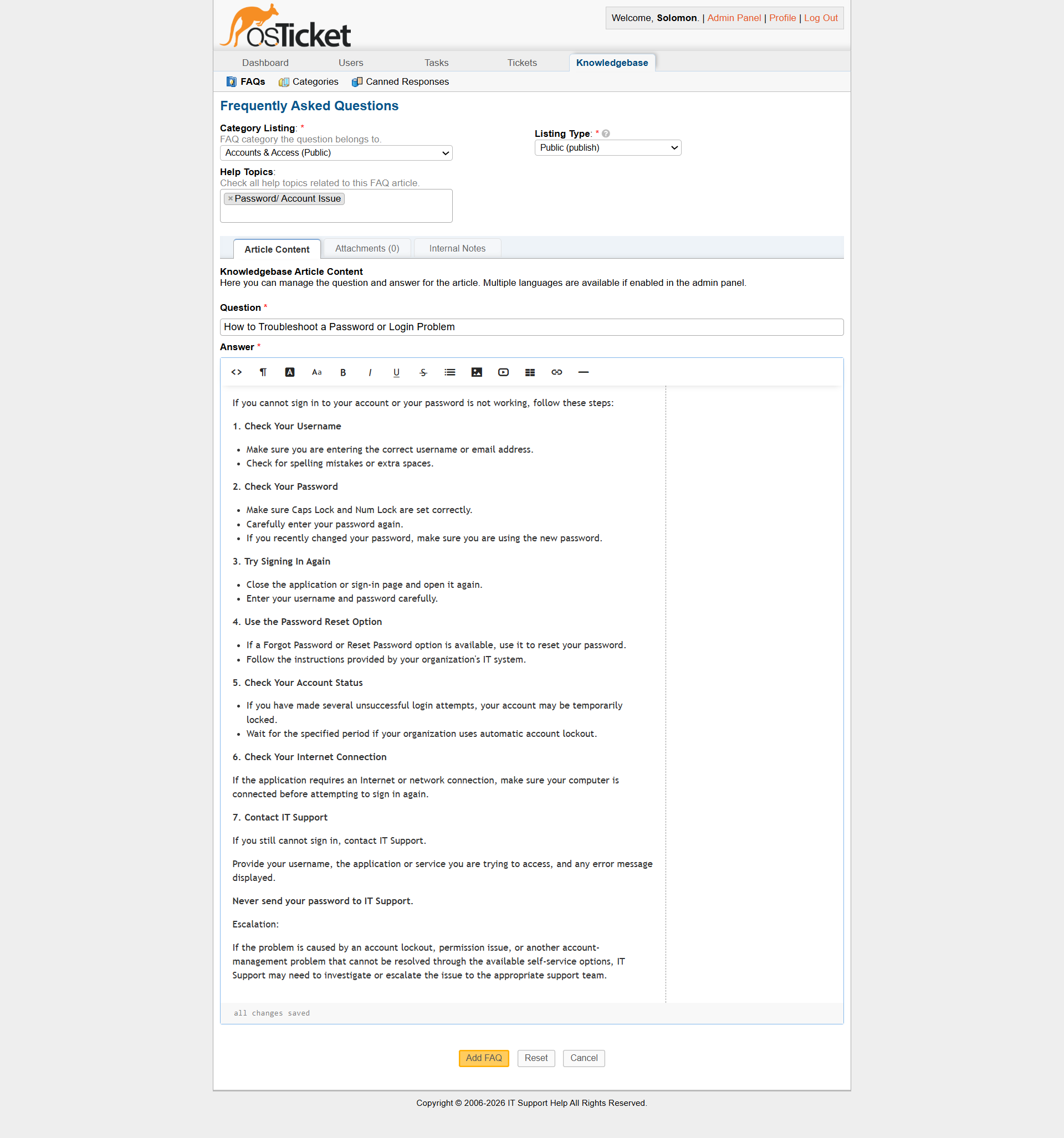
FAQ providing troubleshooting guidance for common login problems.
Hardware & Peripherals
The Hardware & Peripherals category contains guidance for common workstation input and printing problems.
7. Keyboard Problem
This FAQ provides basic troubleshooting steps for keyboard-related problems.
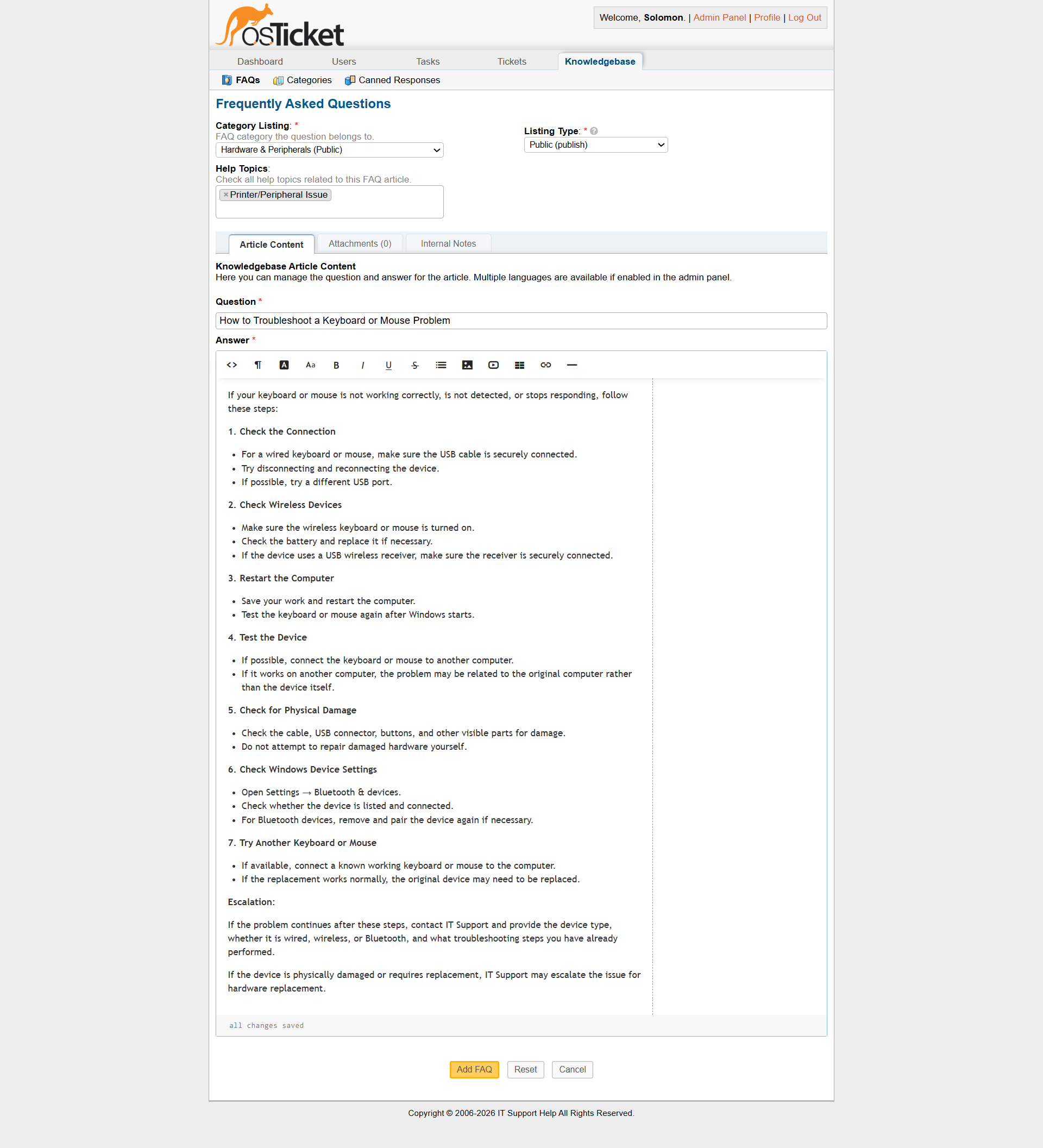
FAQ providing troubleshooting guidance for keyboard problems.
8. Printer Not Printing
This FAQ provides basic troubleshooting steps for a printer that is not producing printed output.
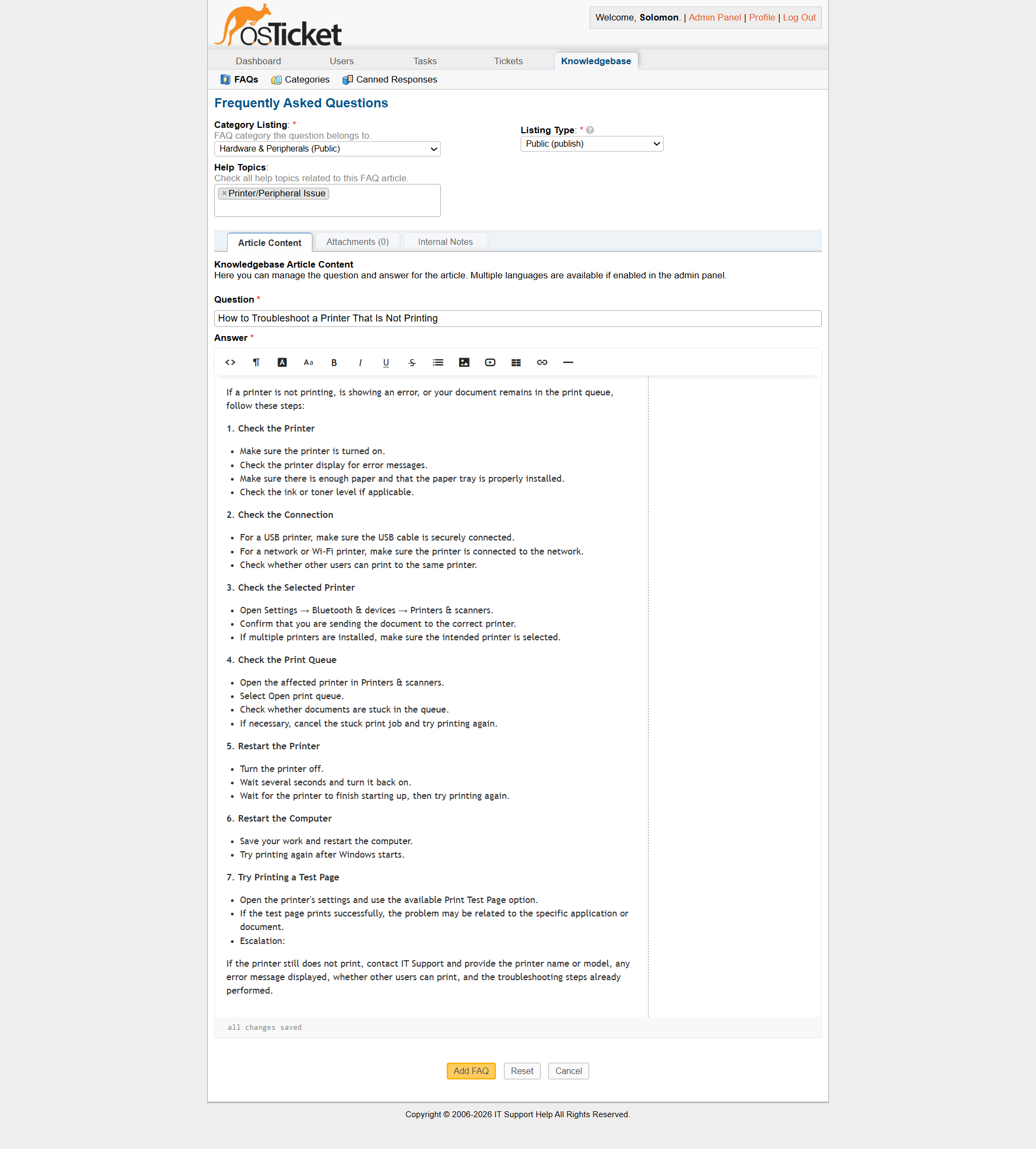
FAQ providing troubleshooting guidance for printer problems.
User-Focused Writing
The FAQs were intentionally written for end users rather than support technicians.
Instructions use straightforward actions such as:
- Open Settings
- Select Windows Update
- Open Task Manager
- Restart the computer
- Check the Wi-Fi connection
- Contact IT Support if the problem continues
Advanced diagnostic commands were avoided when they were unnecessary for the intended audience.
This distinction is important in a real Service Desk environment because technical documentation should match the knowledge level of its intended audience.
Consistent FAQ Structure
Each FAQ follows a consistent structure:
Question → Problem explanation → Troubleshooting steps → Escalation guidance
This approach makes the articles easier for users to follow and creates consistency across the Knowledge Base.
The articles are designed to help users perform appropriate first-level troubleshooting while identifying situations that require IT Support intervention.
Relationship Between the Knowledge Base and Tickets
The Knowledge Base and ticketing system serve complementary purposes.
Knowledge Base
Provides users with self-service instructions for common and repeatable problems.
Service Desk Tickets
Provide a structured workflow when:
- Self-service troubleshooting does not resolve the problem.
- The issue requires technician intervention.
- The problem requires investigation or diagnosis.
- The incident needs to be documented and tracked.
This creates a simple support escalation model:
Self-Service → IT Support Ticket → Technician Troubleshooting → Resolution
Knowledge Base Design Principles
The content was developed around several principles.
1. Clear Language
Instructions use straightforward language that non-technical users can understand.
2. Safe Troubleshooting
Users are guided toward low-risk actions before more advanced intervention is required.
3. Step-by-Step Instructions
Each article breaks troubleshooting into manageable actions.
4. Appropriate Escalation
Articles explain when the user should stop troubleshooting and contact IT Support.
5. Consistency
Similar support issues follow a consistent documentation format, making the Knowledge Base easier to maintain.
Knowledge Base Outcome
The completed Knowledge Base provides a foundation for self-service support while also giving technicians a consistent reference for common incidents.
It demonstrates an important Service Desk principle: not every technical problem needs to begin with a technician.
Well written self service documentation can resolve simple issues quickly, reduce repetitive tickets, and allow support staff to focus on incidents that require technical investigation.