Ticket #582292 — Zoom Microphone Access Issue
Incident Summary
The user reported that the microphone was not working during Zoom calls and that Zoom was unable to access the microphone.
The incident was investigated as an application permissions issue, with particular attention to Windows microphone privacy settings.
Status: Open Priority: Normal Department: Support Source: Web
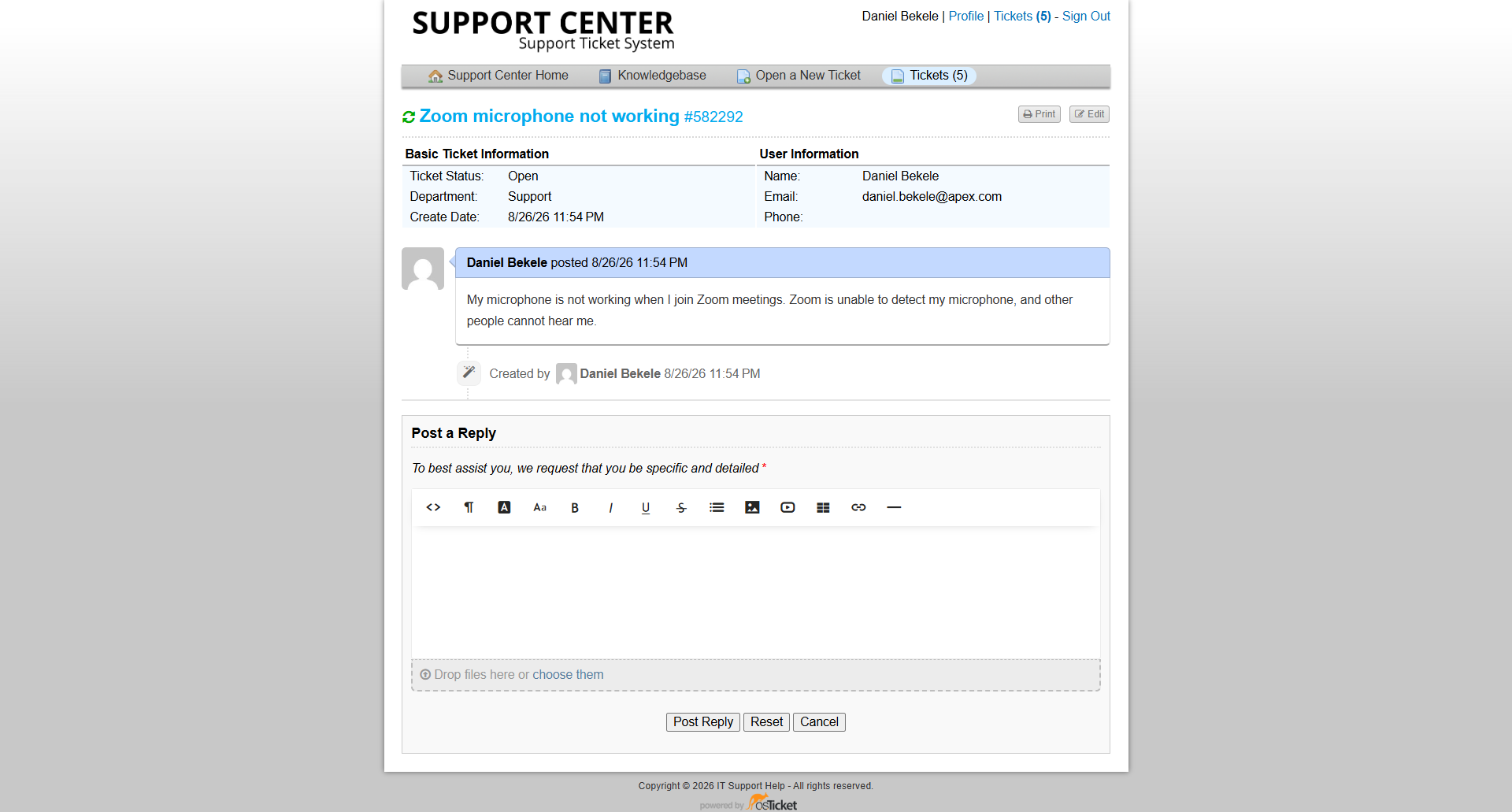
Ticket #582292 showing the reported Zoom microphone issue.
Initial Assessment
The reported symptom was that the microphone was unavailable when using Zoom.
The initial troubleshooting focused on determining whether:
- The microphone was physically available to Windows.
- Windows microphone access was enabled.
- Applications were permitted to use the microphone.
- Zoom could access the microphone after permissions were corrected.
Because the issue involved a specific application, Windows privacy permissions were investigated before considering hardware failure.
Step 1 — Test the Microphone
The microphone was tested from within Zoom.
When the microphone test was initiated, Windows displayed a permissions prompt requesting microphone access.
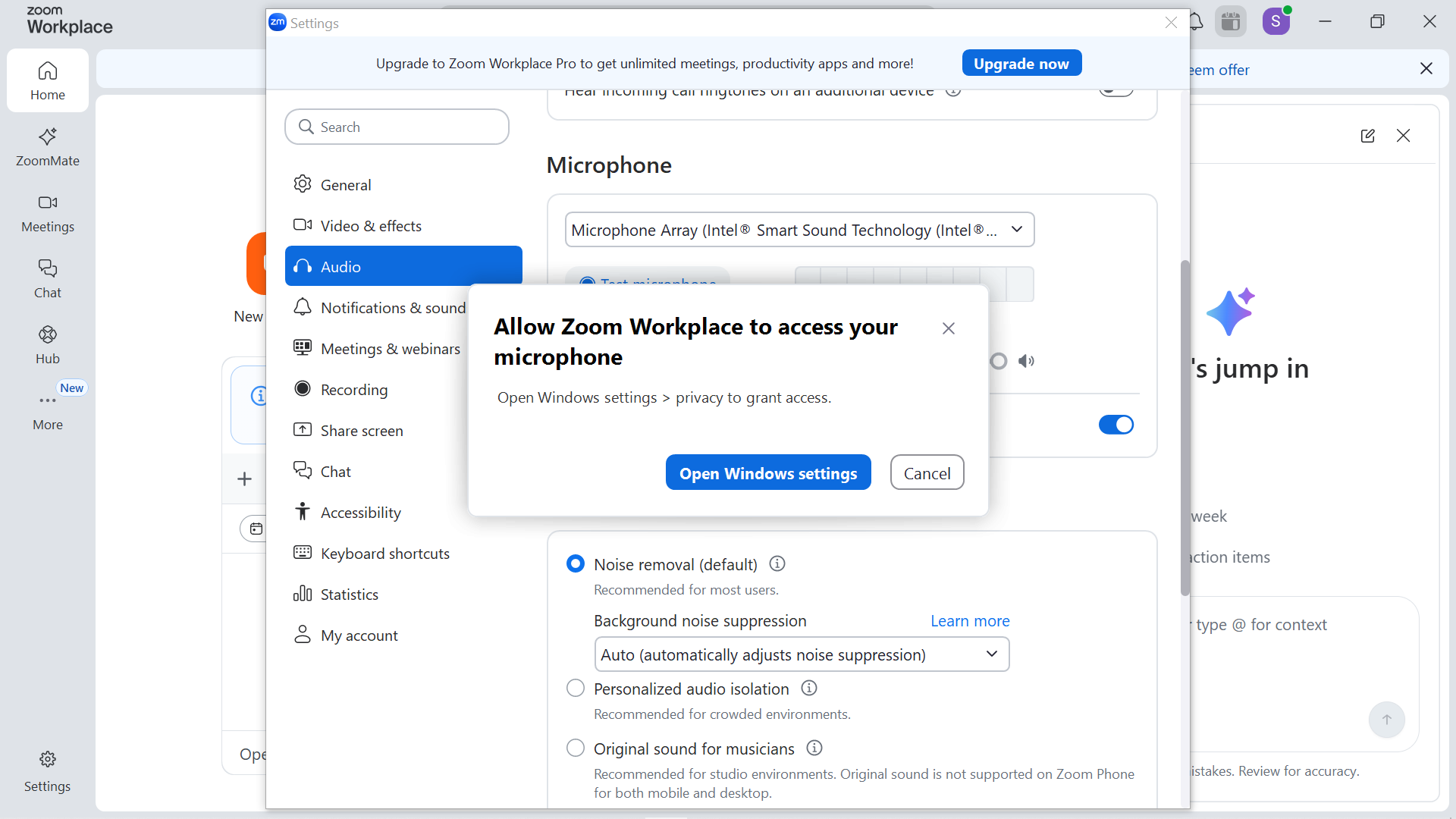
Windows prompted for microphone permission when the Zoom microphone test was initiated.
This provided evidence that Windows privacy permissions were involved in the problem.
Step 2 — Check Windows Microphone Permissions
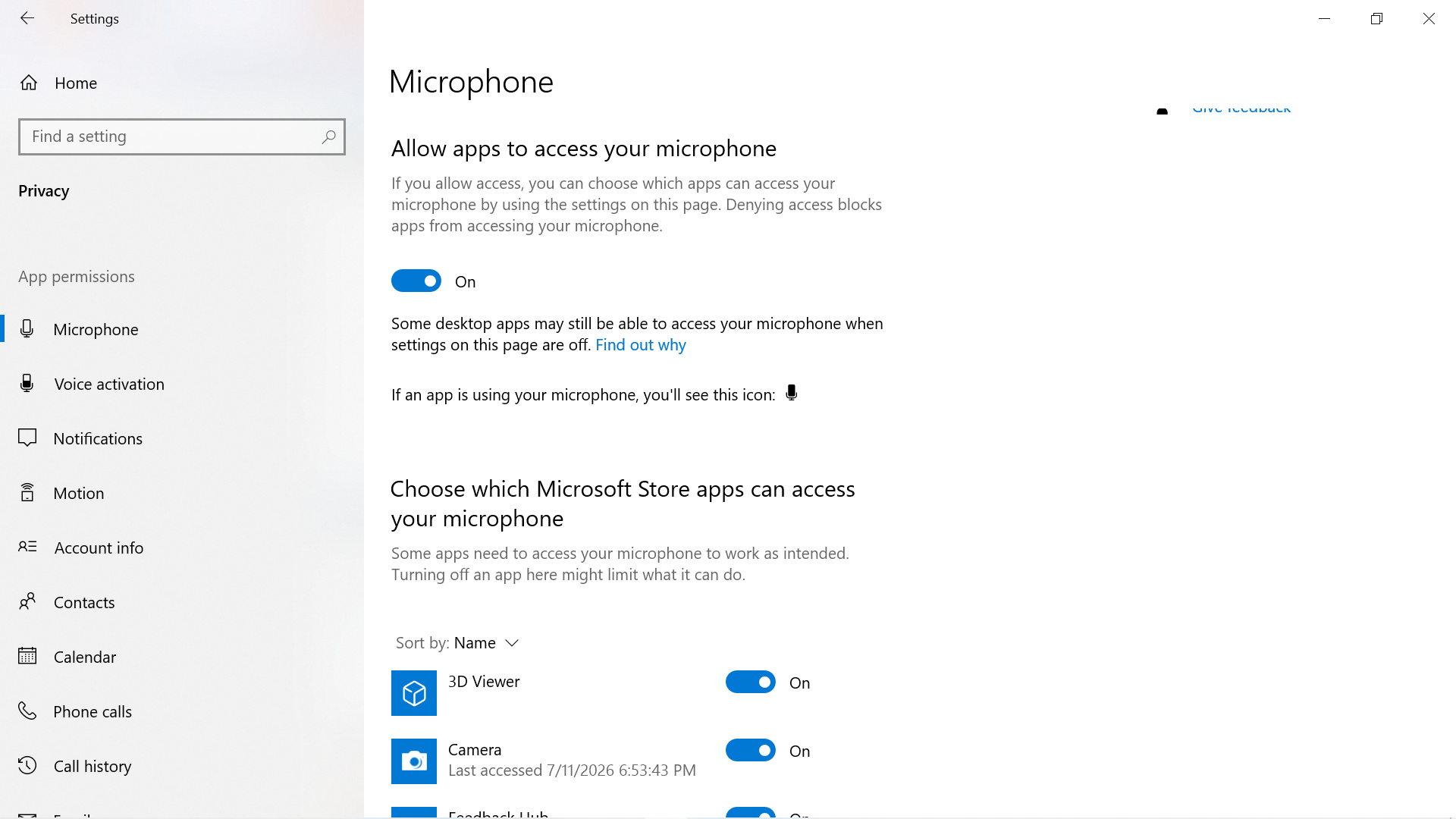
Windows microphone privacy settings were opened through:
Settings → Privacy & Security → Microphone
The microphone access settings were reviewed.
The relevant permissions were enabled so that applications could access the microphone.
Step 3 — Verify Application Access
The settings controlling application/desktop-app access to the microphone were checked.
Because Zoom is a desktop application, the Windows setting allowing desktop applications to access the microphone was particularly relevant.
The required access was enabled.
Resolution
After microphone access was enabled, Zoom was tested again.
The application was able to access the microphone successfully.
No hardware replacement or driver reinstallation was required.
The resolution was therefore limited to correcting the Windows microphone privacy permission.
Verification
The microphone test was performed again from Zoom.
Result:
- Windows allowed microphone access.
- Zoom detected the microphone.
- The microphone test worked successfully.
- The original issue was resolved.
Internal Documentation
The troubleshooting and resolution were documented in an internal ticket note.
The note recorded that the issue was caused by Windows microphone privacy permissions and that enabling the required access restored microphone functionality in Zoom.
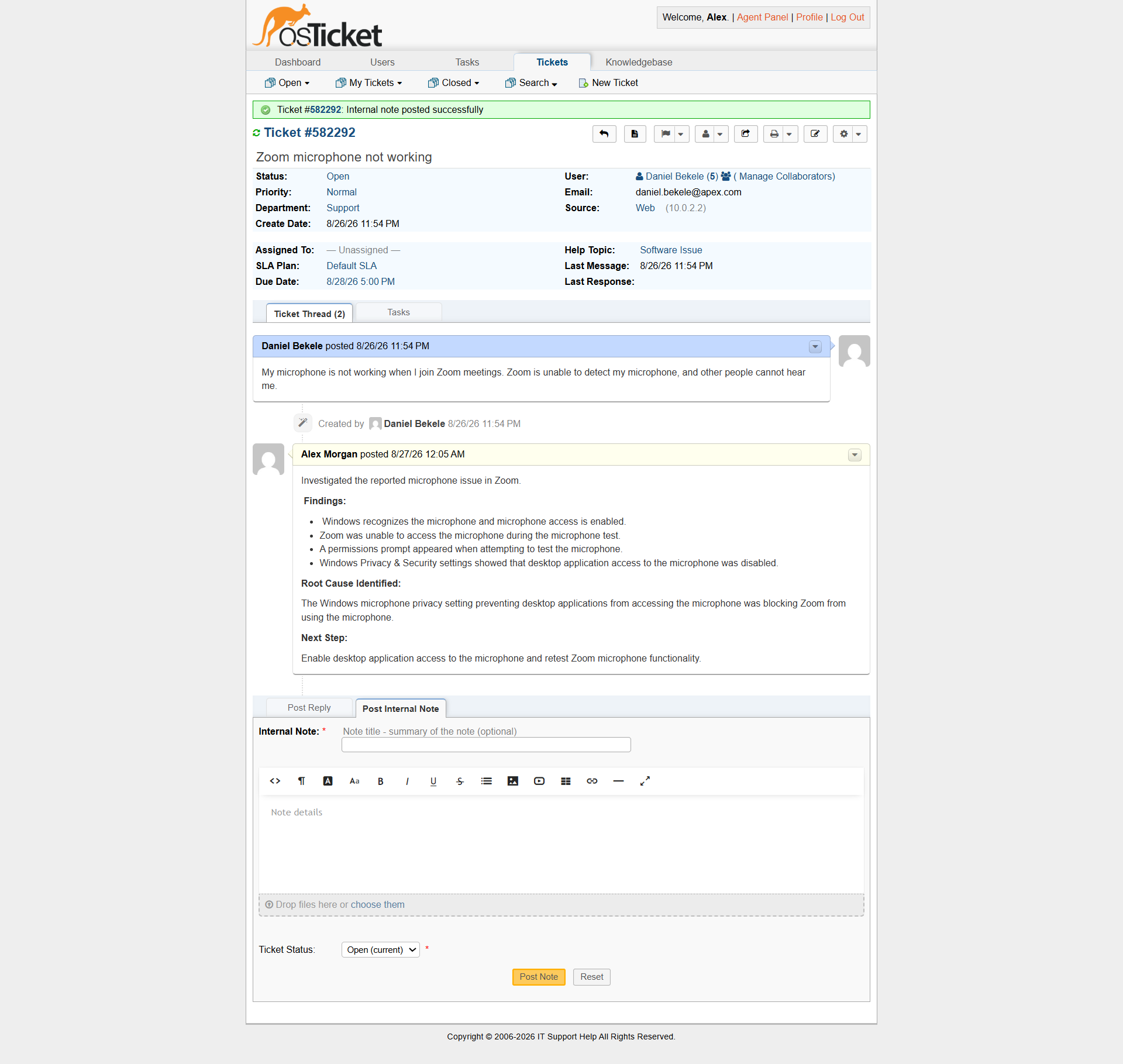
Internal note documenting the permission related diagnosis and resolution.
Customer Communication
A customer-facing response was added to the ticket to confirm that microphone access had been restored.
The explanation was kept simple and focused on the outcome rather than exposing unnecessary technical details.
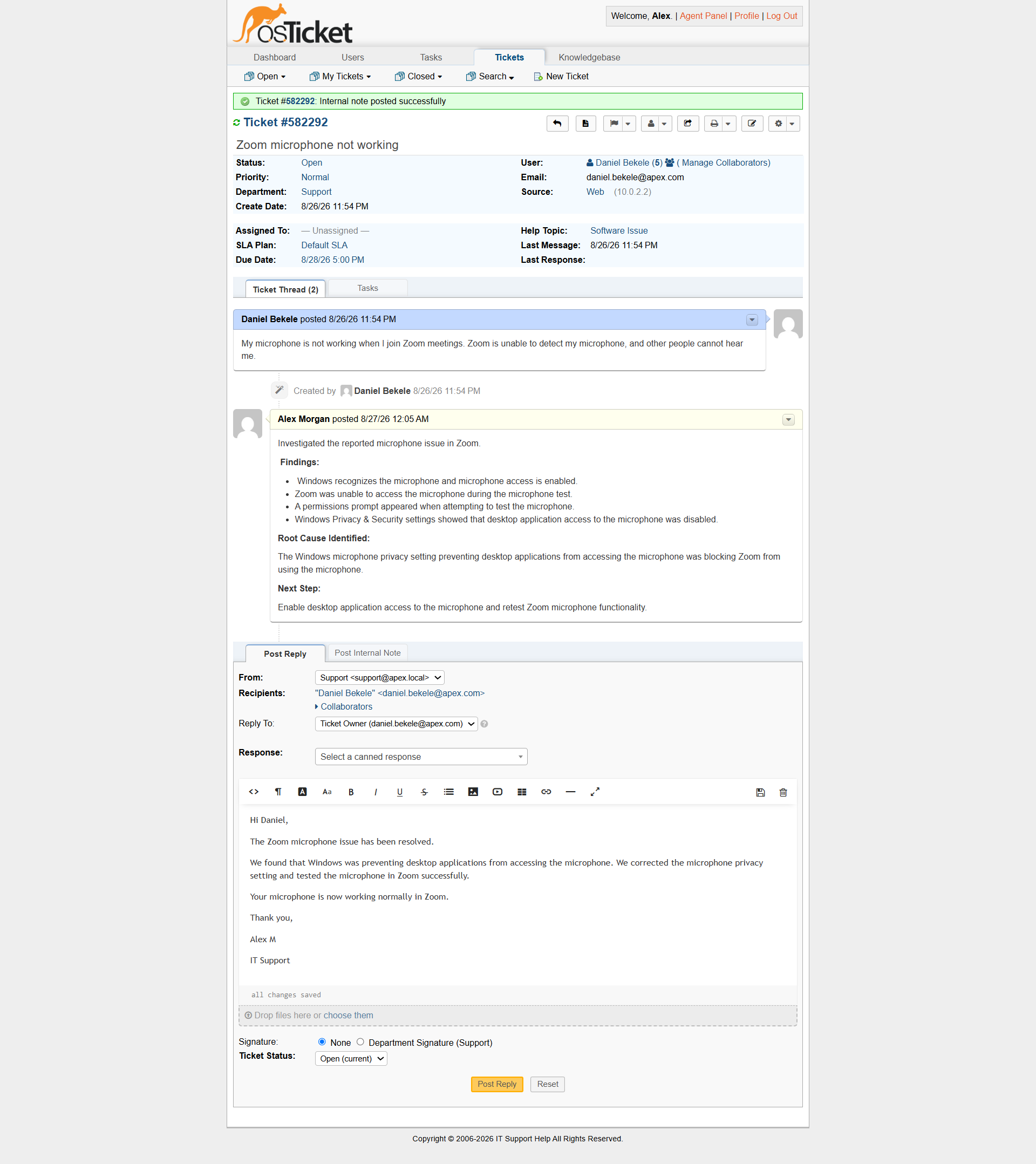
Customer-facing response confirming that microphone access was restored.
Support Skills Demonstrated
This incident demonstrates:
- Windows privacy settings
- Application permission troubleshooting
- Microphone troubleshooting
- Zoom troubleshooting
- Windows Settings navigation
- Evidence-based diagnosis
- Permission management
- Functional verification
- Customer communication
- Ticket documentation
Key Lesson
When a device works normally in Windows but a specific application cannot access it, application or operating-system permissions should be considered before assuming that the hardware has failed.
In this case, checking Windows microphone privacy settings provided a simple path to identifying and resolving the problem.