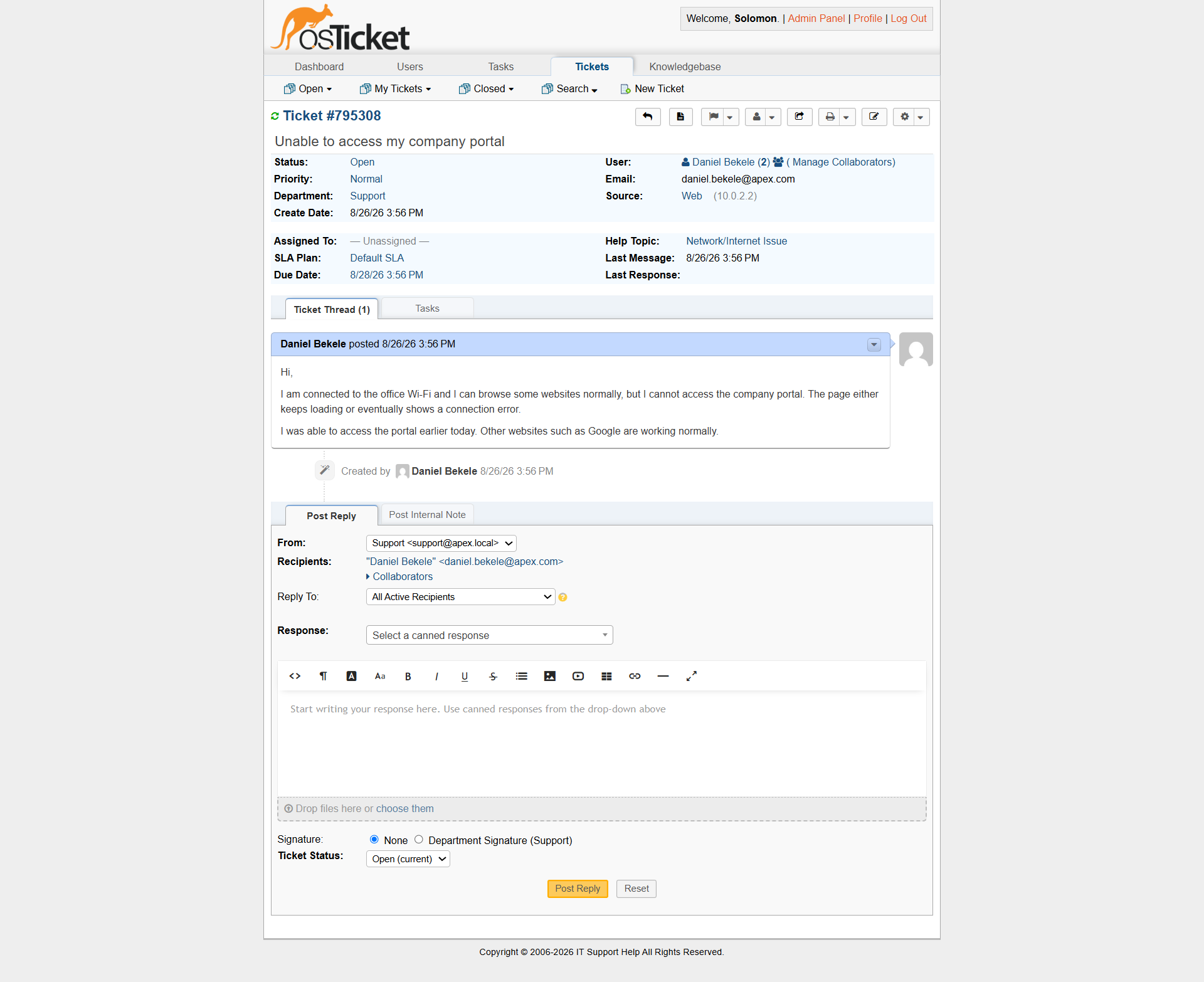
Ticket #795308 — Connected to Wi-Fi but No Internet Access
Incident Summary
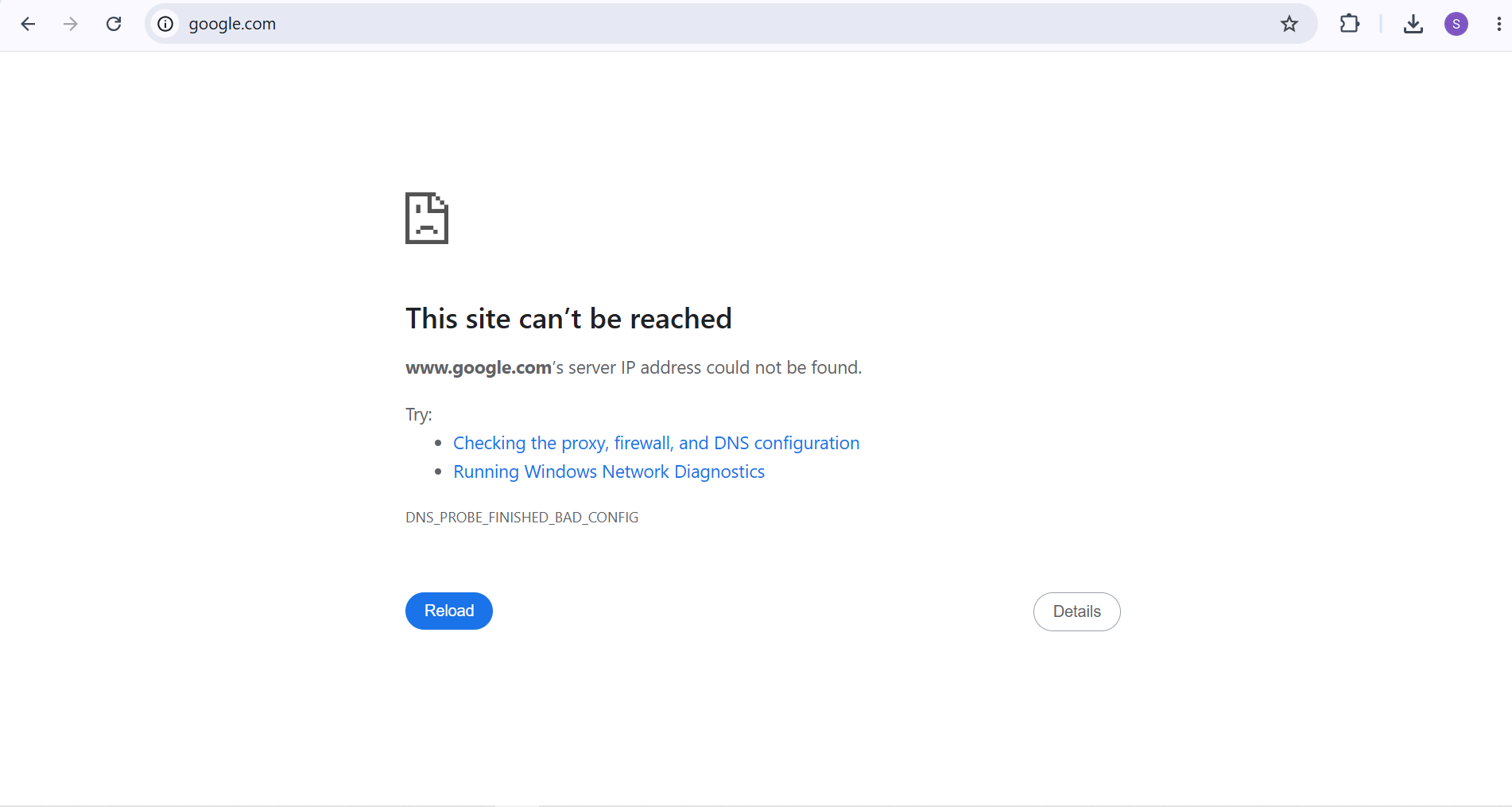
The user reported that the workstation was connected to Wi-Fi but was unable to access the Internet.
The ticket was investigated as a network connectivity incident to determine whether the problem was related to the wireless connection, IP configuration, gateway connectivity, DNS resolution, or external Internet access.
Status: Closed Priority: Normal Department: Support Source: Web
Initial Assessment
The reported symptom was:
«Connected to Wi-Fi, but unable to access the Internet.»
The first step was to confirm whether the workstation actually had an active network connection and valid IP configuration.
The investigation then moved through the network stack from the local workstation toward external connectivity.
Step 1 — Verify Wi-Fi Connection
The workstation was connected to the wireless network.
The Windows Wi-Fi status showed:
- SSID: spot
- Protocol: Wi-Fi 4 (802.11n)
- Security: WPA2-Personal
- Network Band: 2.4 GHz
- Channel: 1
- Link Speed: 72/72 Mbps
- IPv4 Address: 10.82.142.99
- DNS Server: 10.82.142.120
This confirmed that the wireless adapter was connected and had received an IPv4 configuration.
Step 2 — Check IP Configuration
The following command was used:
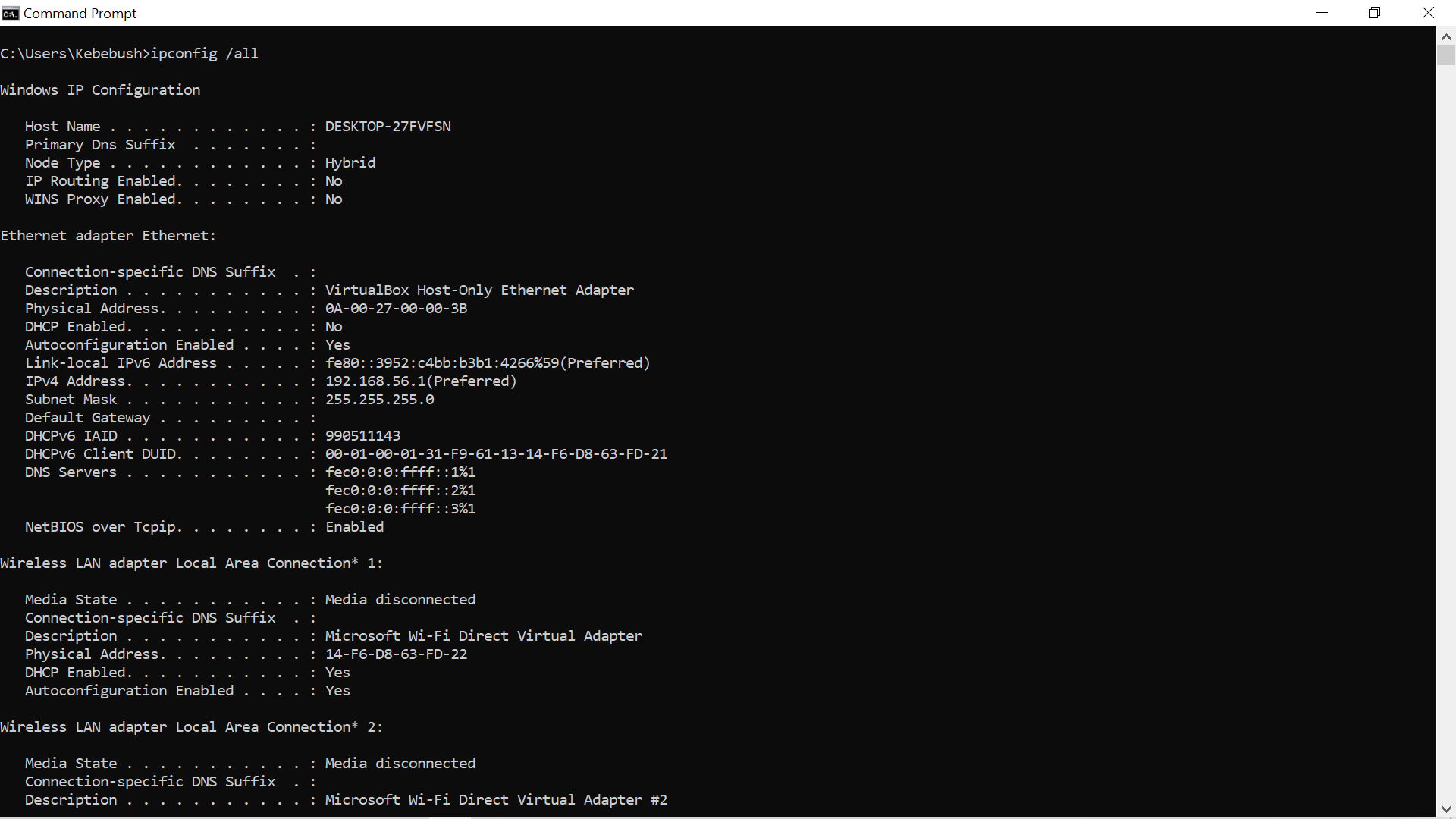
ipconfig /all
The Wi-Fi adapter showed:
IPv4 Address: 10.82.142.99 Subnet Mask: 255.255.255.0 Default Gateway: 10.82.142.120 DHCP Server: 10.82.142.120 DNS Server: 10.82.142.120
The workstation therefore had a valid IPv4 address, subnet mask, default gateway, DHCP server, and DNS server.
This indicated that the problem was not simply a missing IP address or disconnected wireless adapter.
Step 3 — Test DNS Resolution
The next diagnostic test was:
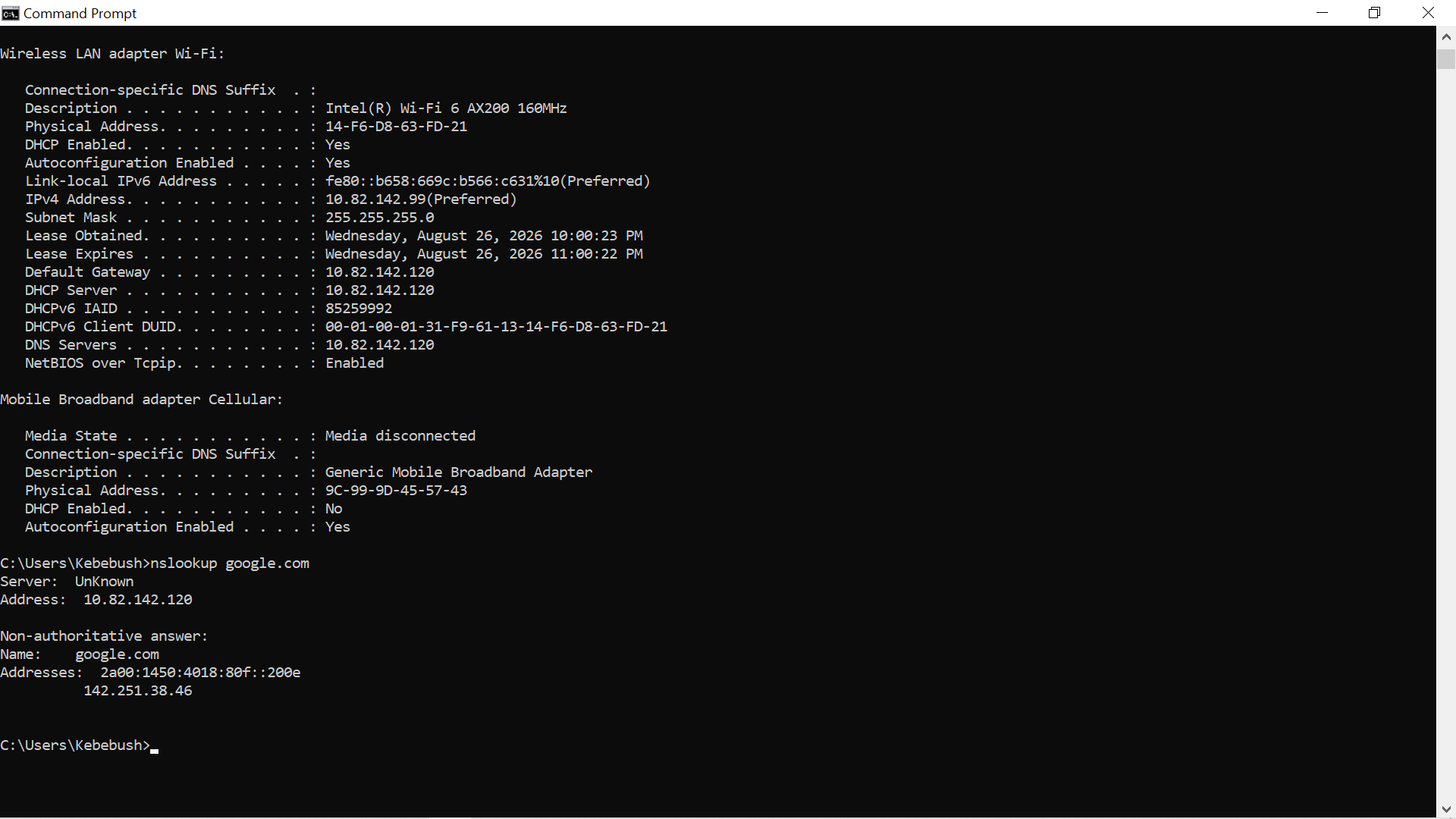
nslookup google.com
The configured DNS server was:
10.82.142.120
The query successfully returned an IPv4 address for "google.com".
This demonstrated that DNS name resolution was functioning at the time of testing.
Step 4 — Test External Connectivity
The next test was:
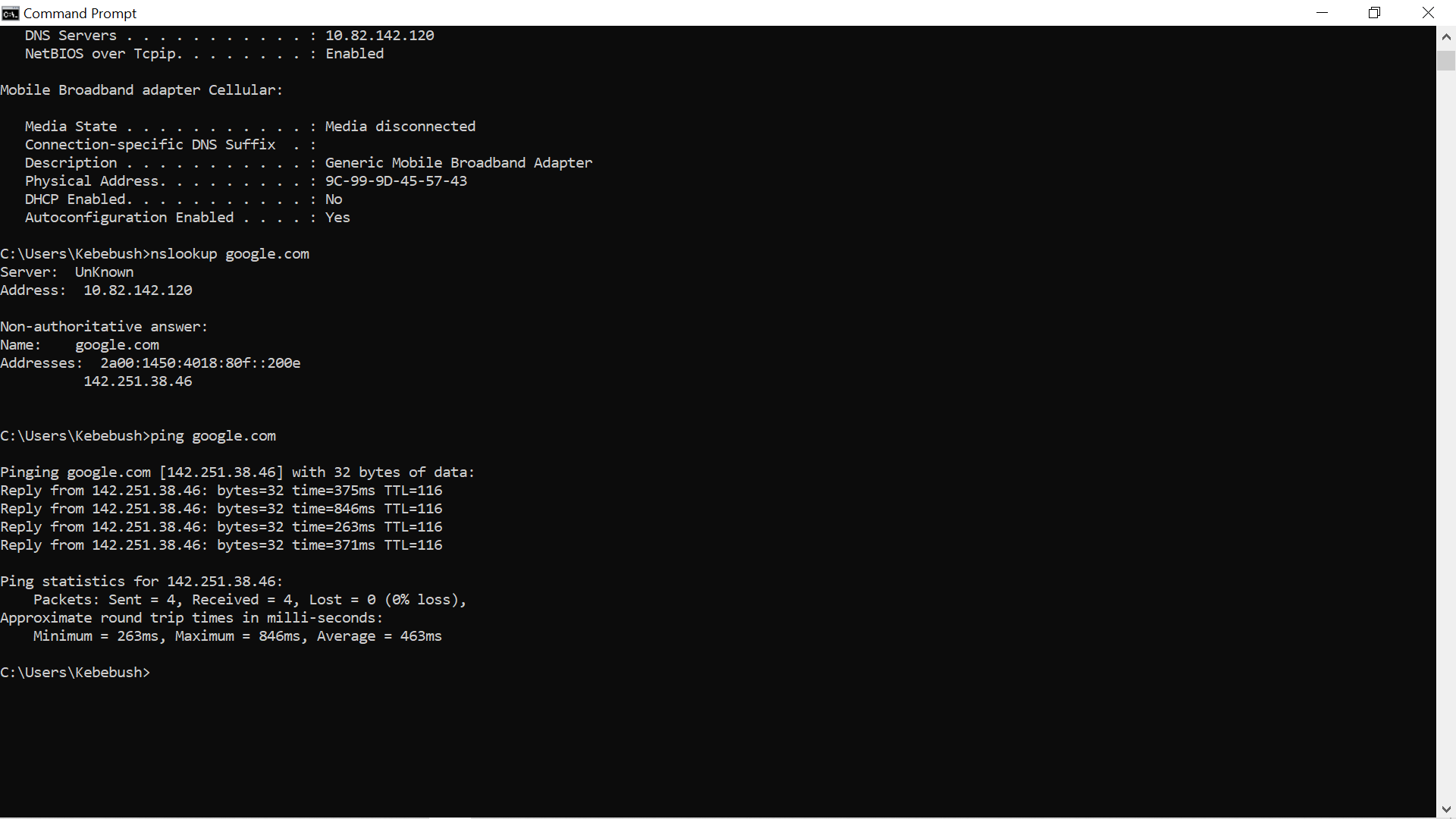
ping google.com
The workstation successfully received replies:
Packets: Sent = 4, Received = 4, Lost = 0 (0% loss)
The average round-trip time was approximately 463 ms.
This confirmed that the workstation could resolve the hostname and communicate with the external destination during the diagnostic test.
Diagnostic Findings
The diagnostic evidence showed:
Test| Result| Interpretation Wi-Fi connection| Connected| Wireless connection active IPv4 configuration| Valid| DHCP configuration present Default gateway| 10.82.142.120| Gateway assigned DNS server| 10.82.142.120| DNS server assigned "nslookup google.com"| Successful| DNS resolution working "ping google.com"| 4/4 replies| External connectivity confirmed
The results obtained during the troubleshooting session did not reproduce the reported Internet failure.
This is an important distinction: the user's original symptom was reported as an Internet access problem, but the subsequent diagnostic tests showed that connectivity was functioning when the technician tested the workstation.
Resolution / Recovery
Because the fault could not be reproduced during the final diagnostic checks, no unnecessary network configuration changes were made.
The workstation was confirmed to have:
- Active Wi-Fi connectivity
- Valid IPv4 configuration
- Working DNS resolution
- Successful external connectivity
The incident was therefore treated as resolved/not currently reproducible rather than changing a configuration without evidence of a fault.
Verification
The final verification consisted of repeating the relevant connectivity tests.
The workstation successfully resolved "google.com" and received four successful ping responses with 0% packet loss.
The user-facing Internet connectivity path was therefore functioning at the time of verification.
Internal Documentation
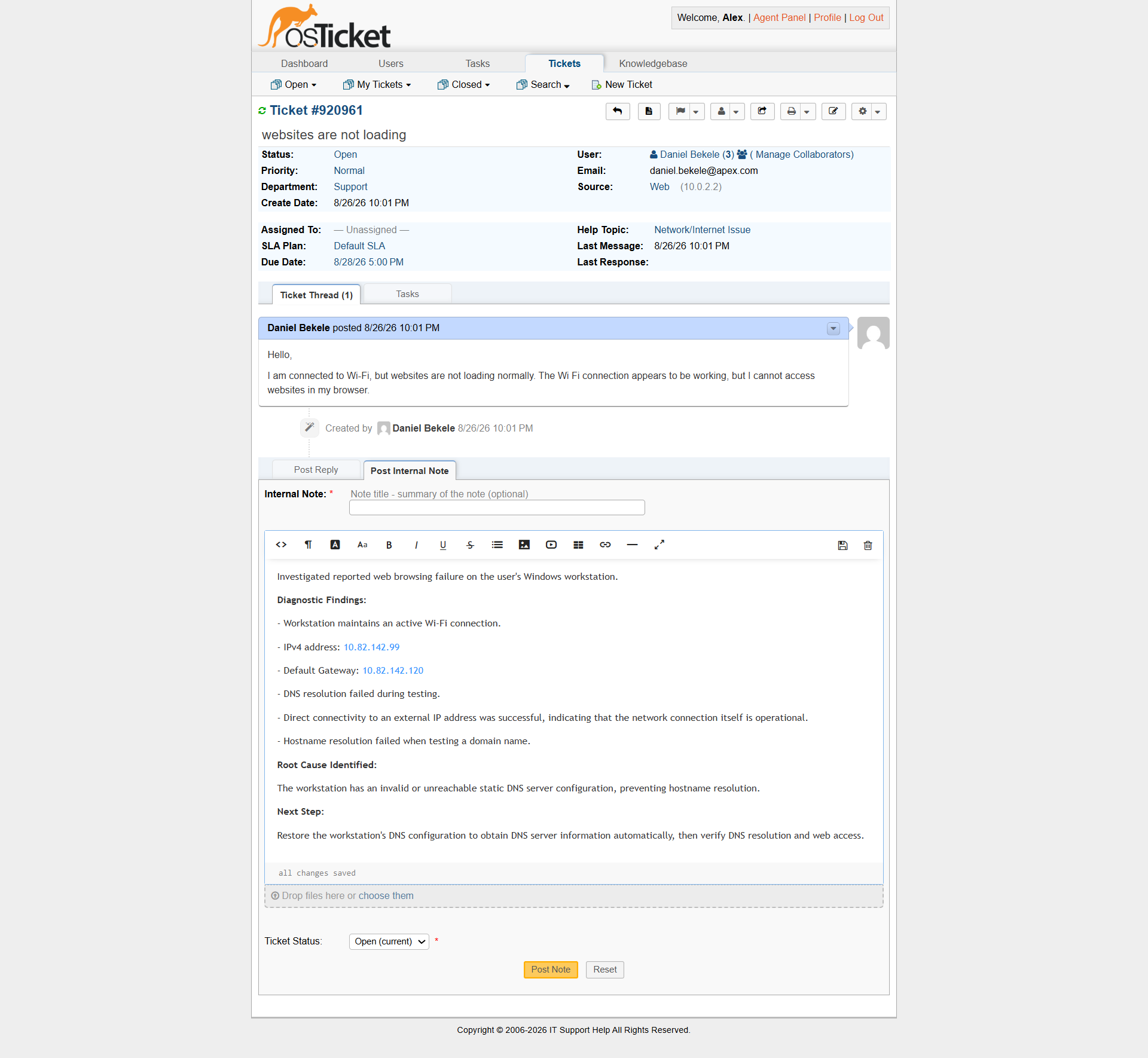
The diagnostic findings were recorded in the ticket using an internal note.
The note documented the IP configuration, DNS testing, and connectivity results rather than simply stating that the Internet was "fixed."
This creates a useful technical record for another technician if the user reports the same problem again.
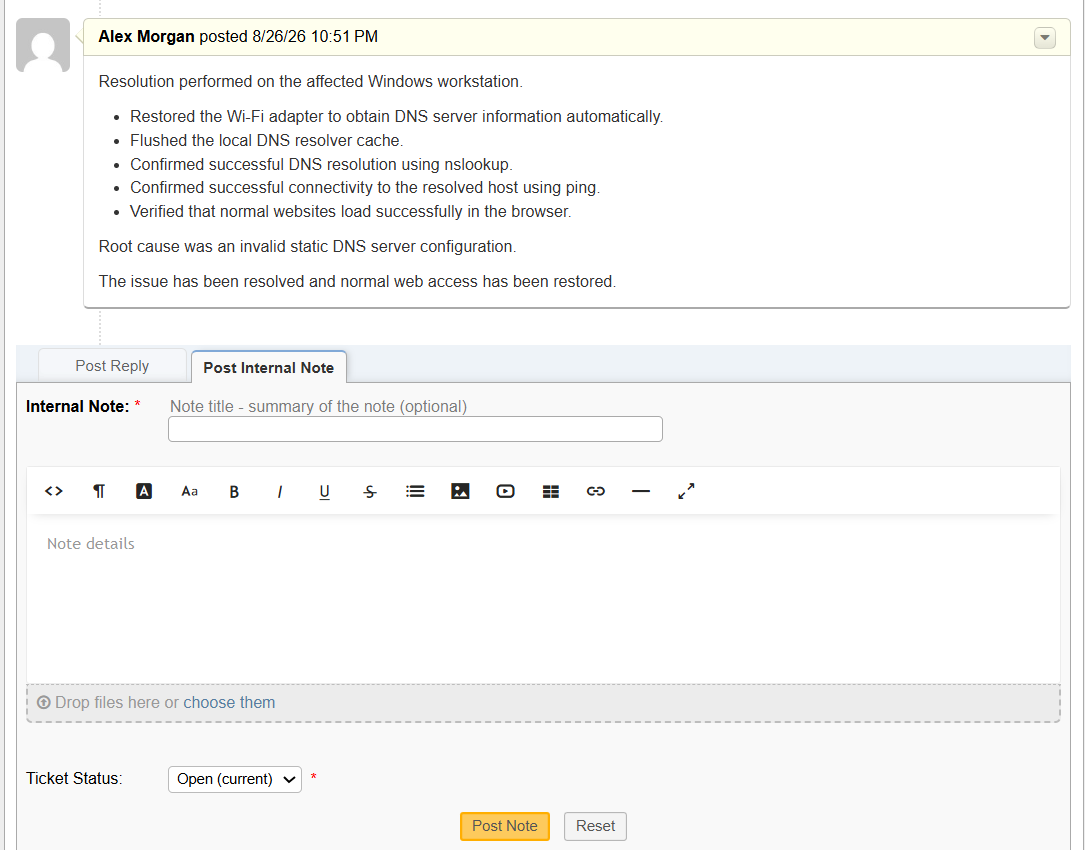
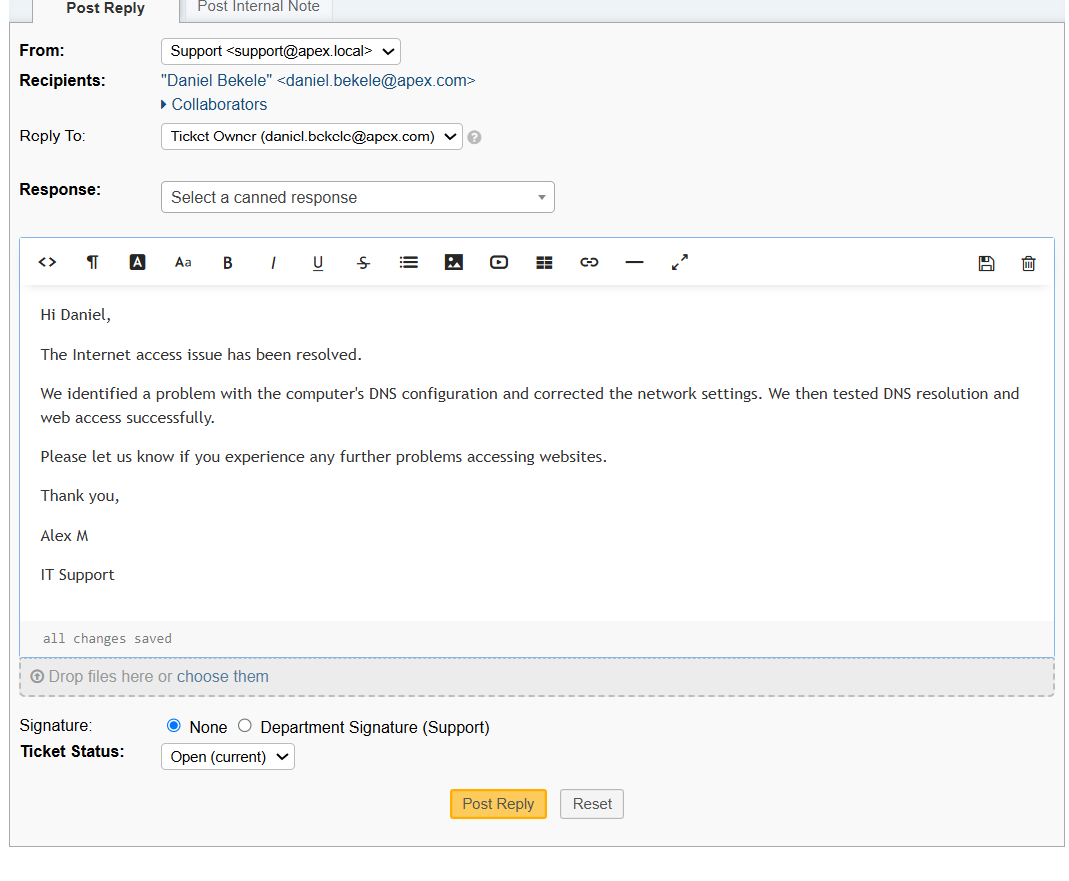
A response was sent to the customer and ticket was closed
Support Skills Demonstrated
This incident demonstrates:
- Wi-Fi troubleshooting
- IPv4 configuration analysis
- DHCP awareness
- DNS troubleshooting
- "ipconfig /all"
- "nslookup"
- "ping"
- Evidence-based diagnosis
- Avoiding unnecessary configuration changes
- Verification after troubleshooting
- Technical ticket documentation
Key Lesson
A reported Internet problem does not automatically mean that the network configuration needs to be changed.
The technician should work through the connectivity path systematically:
Wi-Fi → IP Configuration → Gateway → DNS → External Connectivity
In this case, the diagnostic evidence showed that the network was functioning during the investigation. Recognizing when not to make a configuration change is an important troubleshooting skill.