Windows 10 Domain Join
Once the domain controller and Active Directory structure were in place, a Windows 10 workstation was configured as the client computer for the lab.
The workstation was named WIN10-CLIENT01 and joined to the "apextech.local" domain. It was then used throughout the project to test domain authentication, permissions, Group Policy, file shares, and mapped network resources.
Windows 10 Client Configuration
The Windows 10 virtual machine was configured on the VirtualBox Host-Only network with the following settings:
Setting| Configuration
Hostname| "WIN10-CLIENT01"
IPv4 address| "192.168.56.20"
DNS server| "192.168.56.10"
Active Directory domain| "apextech.local"
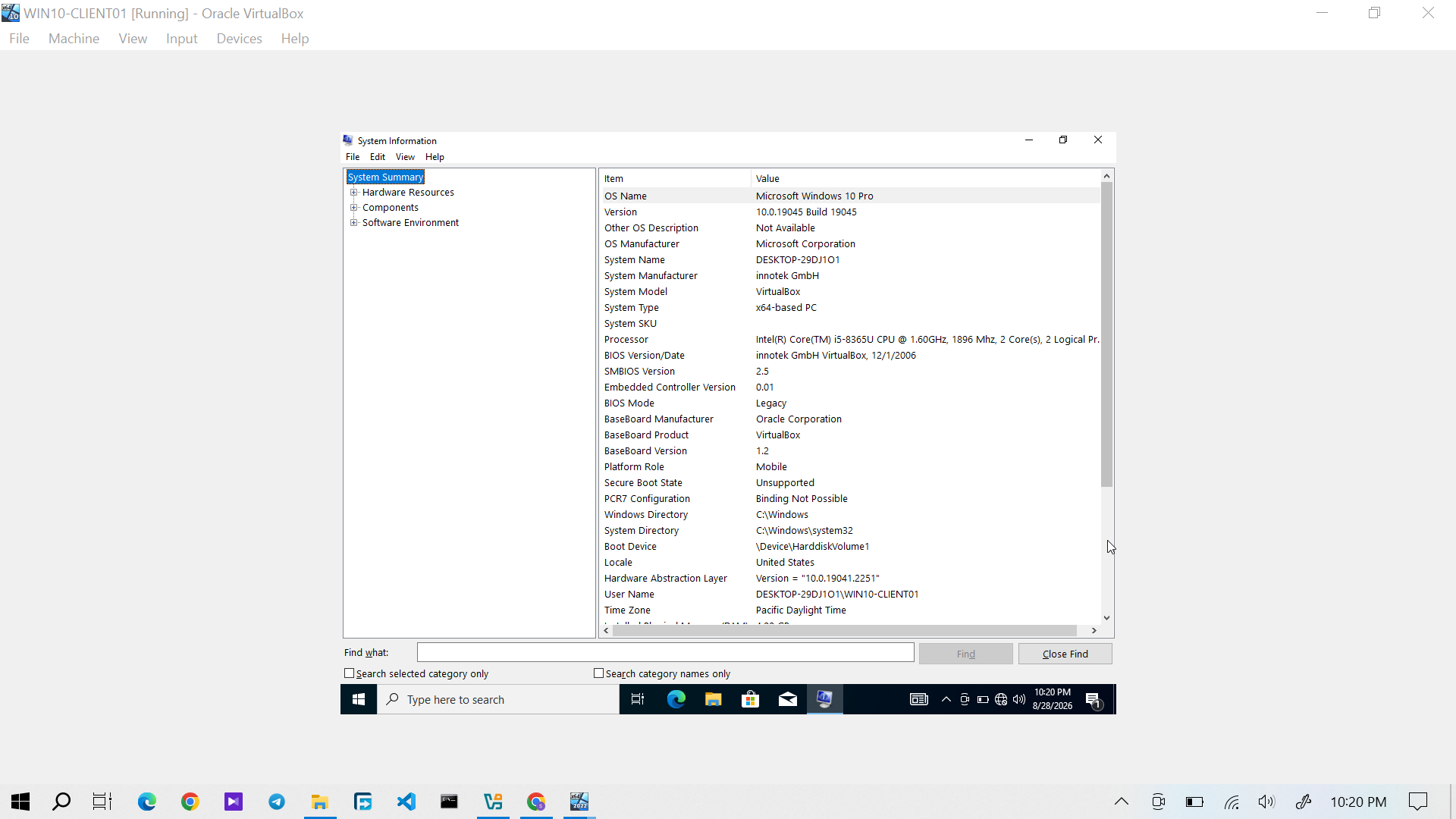
Figure 1: Windows 10 workstation system information.
The client was configured to use AD-DC01 as its DNS server so that it could resolve the Active Directory domain and locate domain services.
Network and DNS Verification
Before joining the domain, connectivity between the Windows 10 client and the domain controller was verified.
The client was tested against the domain controller at:
"192.168.56.10"
Both network connectivity and DNS resolution were checked from the workstation.
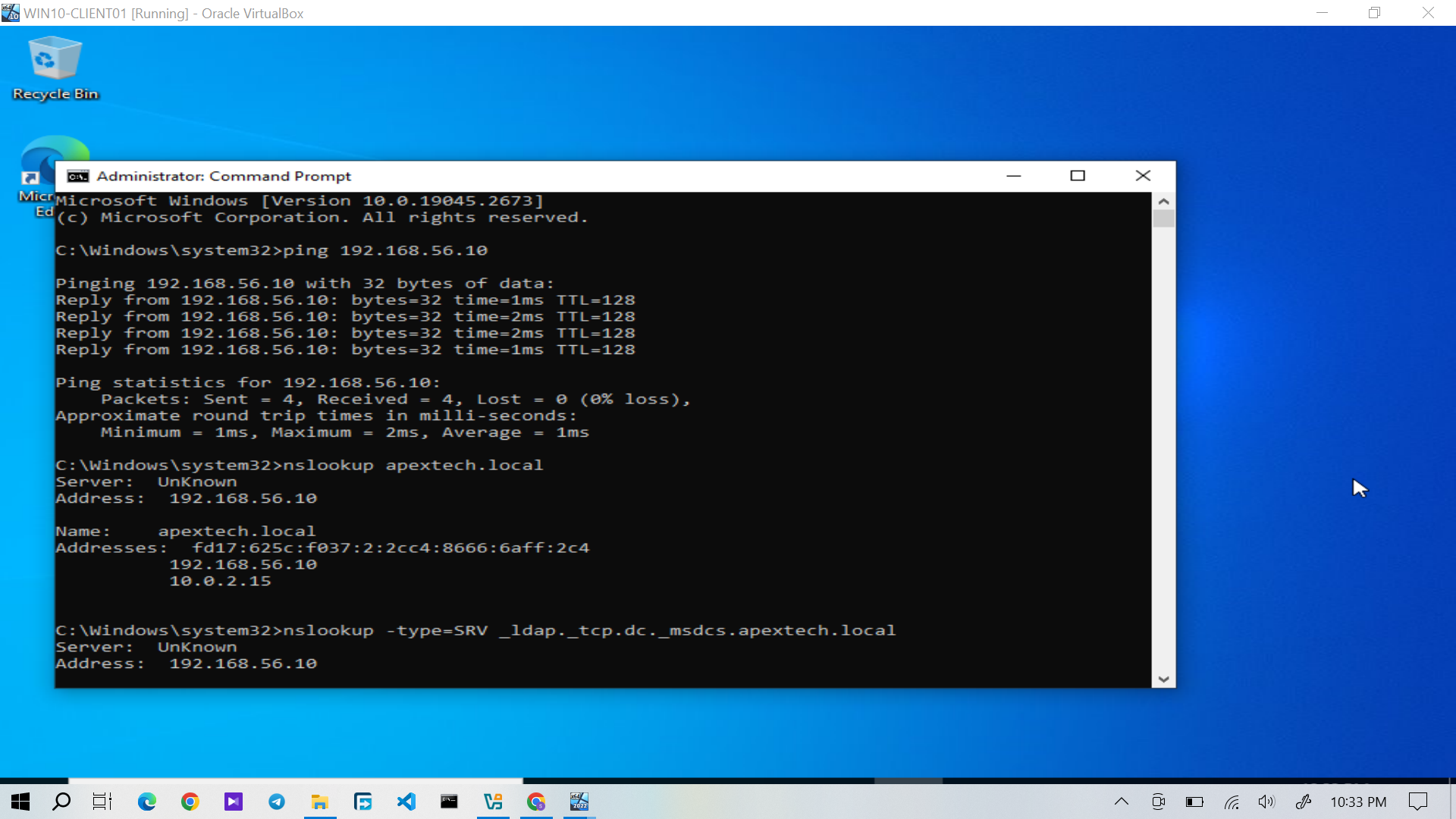
Figure 2: Network connectivity and DNS resolution testing from WIN10-CLIENT01.
The successful tests confirmed that the workstation could communicate with AD-DC01 and resolve the services required for the domain join.
Joining the Active Directory Domain
The workstation was then joined to the existing Active Directory domain:
"apextech.local"
After the domain join completed, Windows was restarted to apply the new domain configuration.
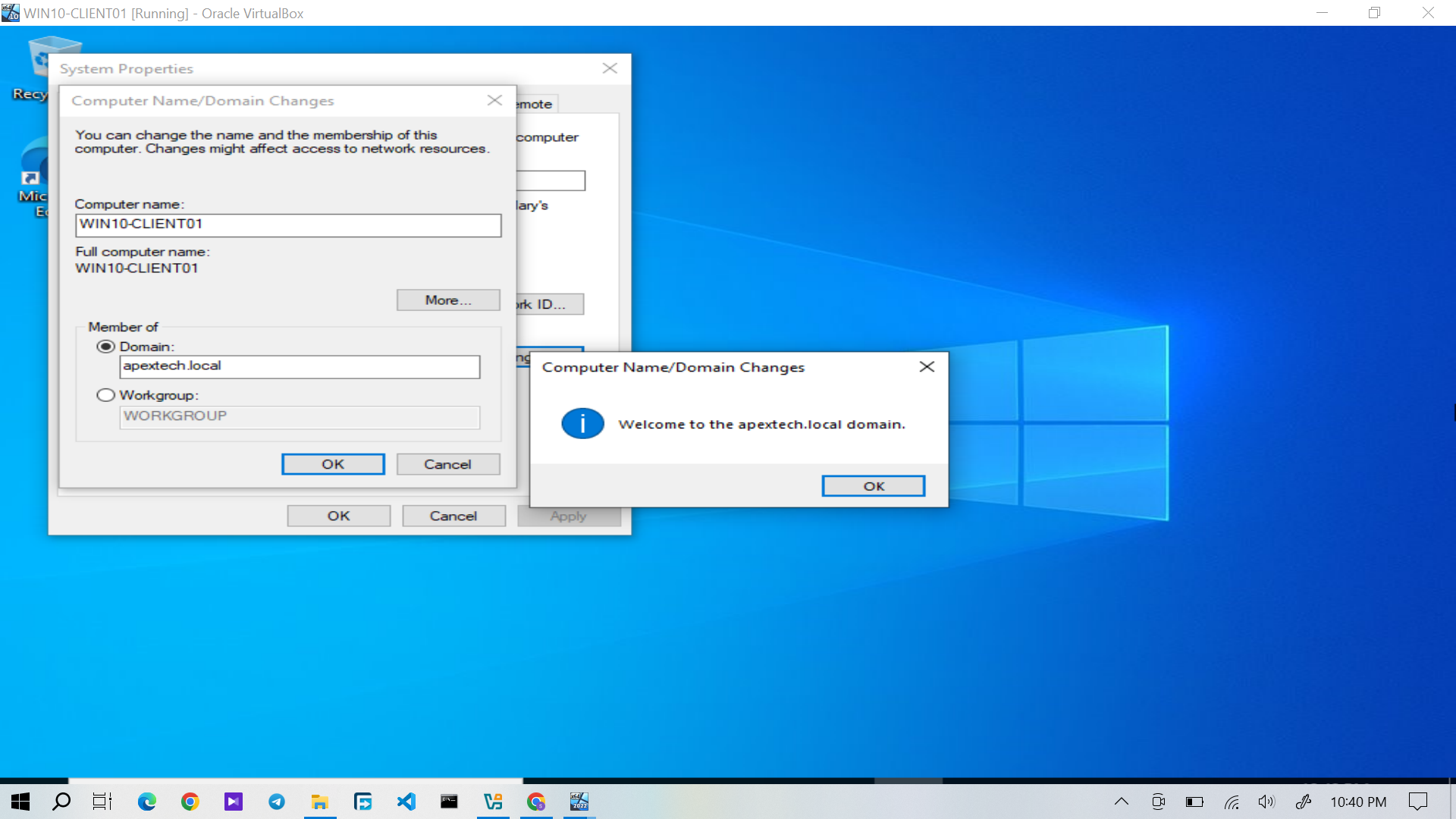
Figure 3: Windows 10 confirming the successful domain join to "apextech.local".
This established WIN10-CLIENT01 as a member workstation within the Active Directory environment.
Domain User Authentication
Following the domain join, a domain user account was used to verify authentication.
The test account was:
"apextech\dcarter"
The "whoami" command was used to confirm the identity of the authenticated user.
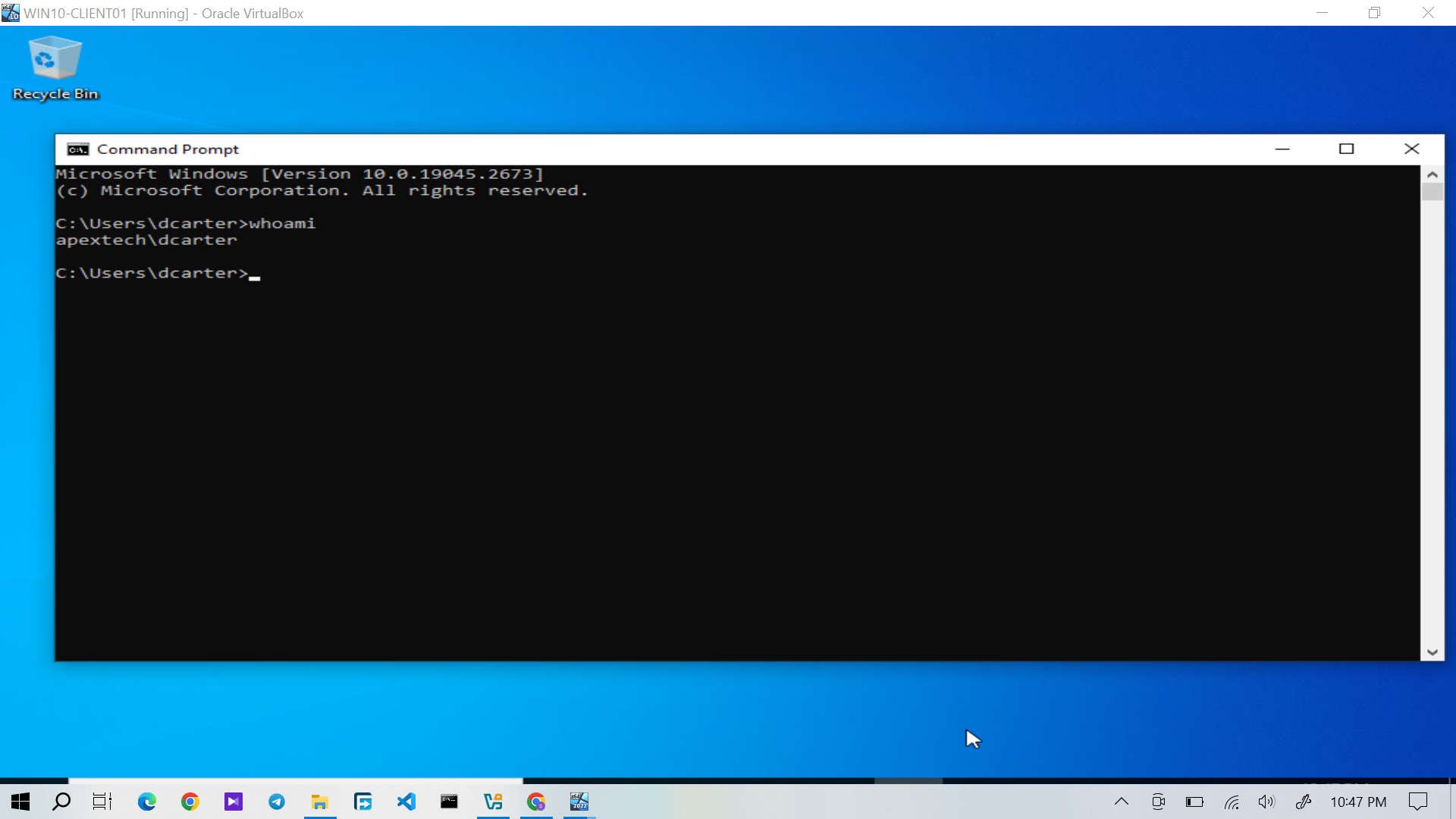
Figure 4: "whoami" confirming authentication as the domain user "apextech\dcarter".
This provided direct evidence that the workstation could authenticate a domain user against Active Directory.
Verifying Domain Membership
The workstation's domain membership was independently verified through Windows system information.
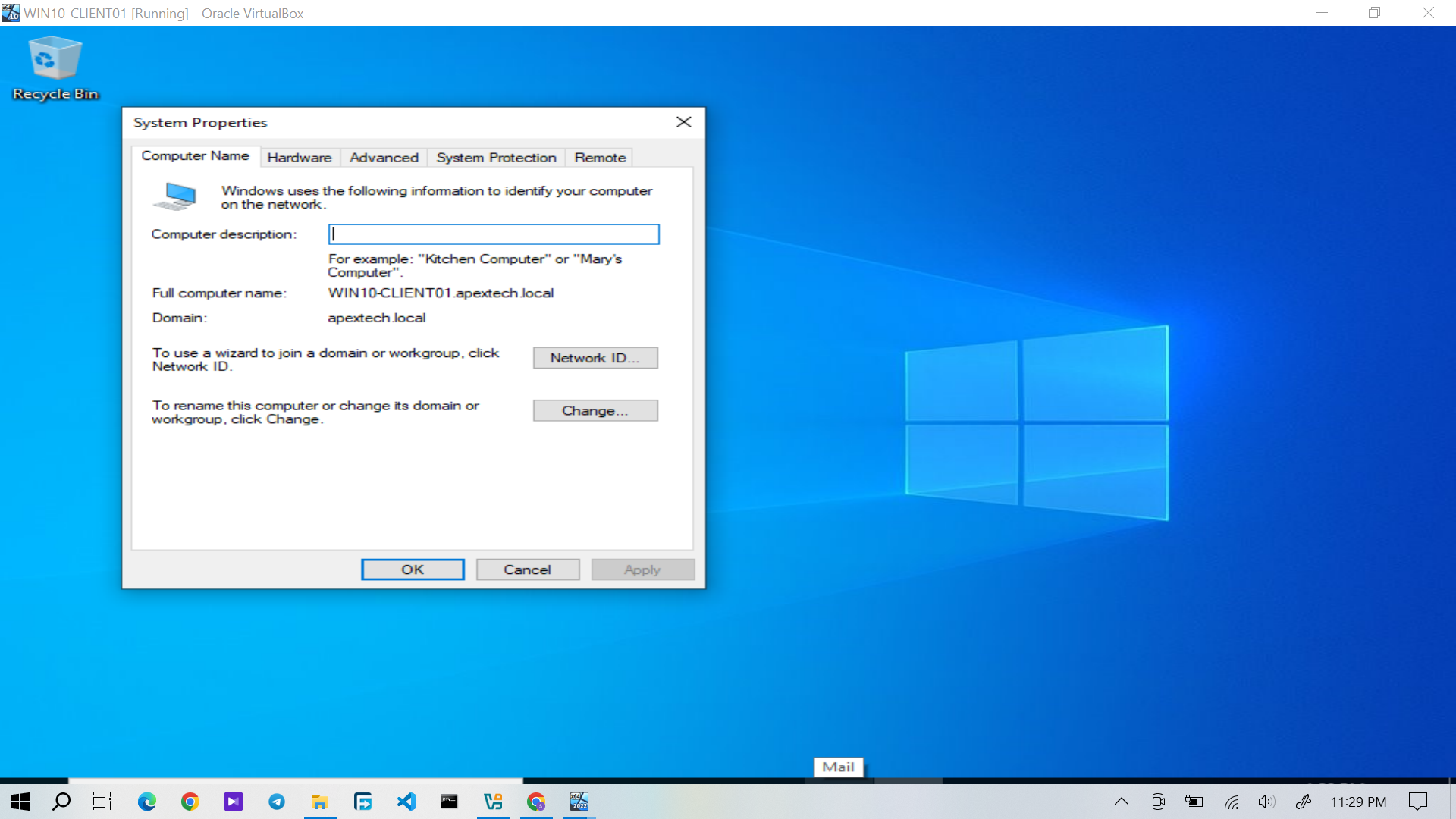
Figure 5: Windows 10 showing membership in the "apextech.local" domain.
This confirmed that the workstation was operating as a domain member rather than as a standalone Windows computer.
Workstation Verification
The workstation identity was also verified to ensure that the intended client computer was being used throughout the lab.
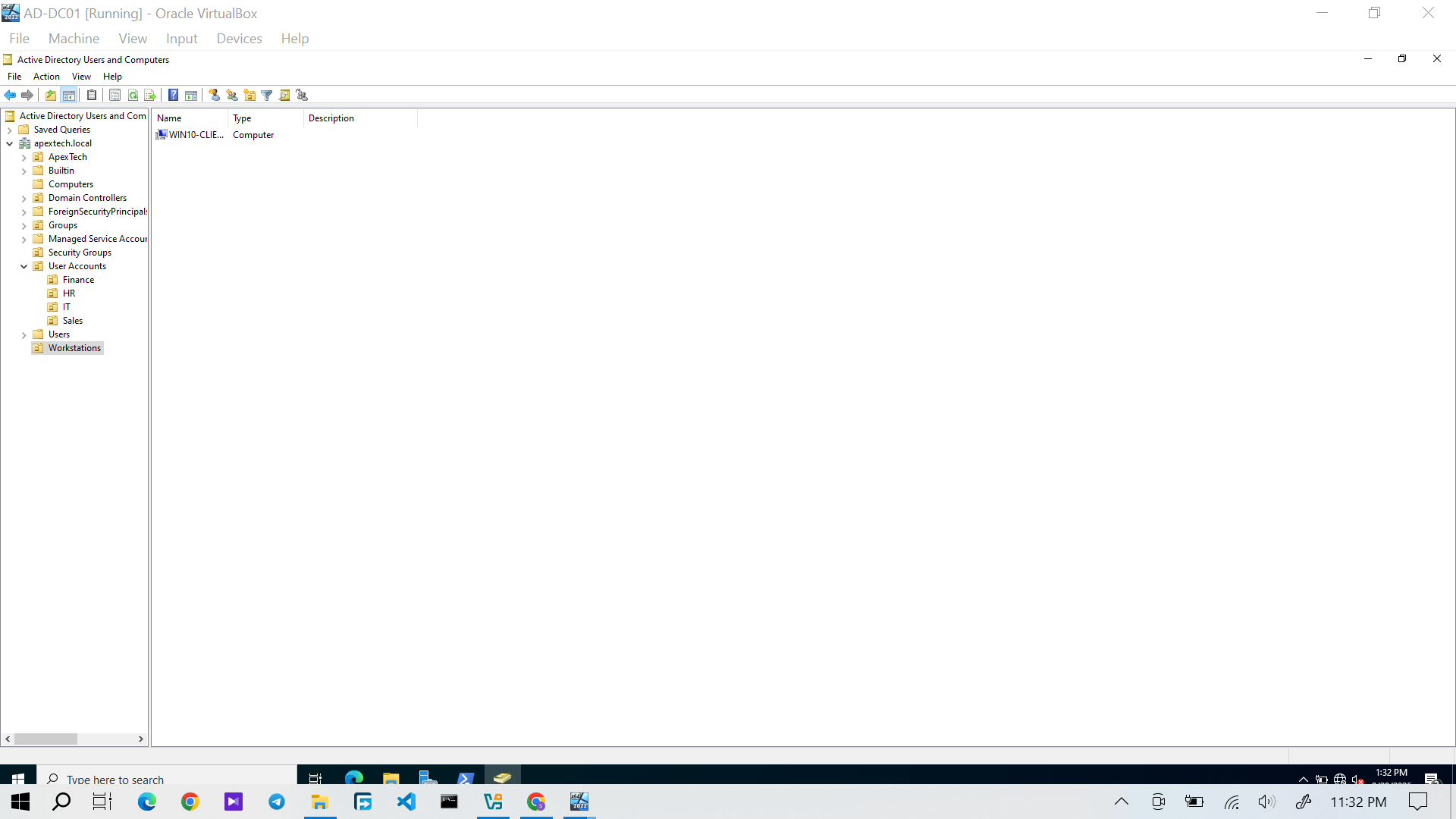
Figure 6: Windows 10 workstation configuration showing "WIN10-CLIENT01".
The completed workstation was then used for subsequent testing involving user access, file shares, security groups, Group Policy, and network drive mapping.
Domain Join Verification
The final client configuration was verified against the expected laboratory settings:
Check| Result
Hostname| "WIN10-CLIENT01"
IPv4 address| "192.168.56.20"
DNS server| "192.168.56.10"
Active Directory domain| "apextech.local"
Domain authentication| Successful
Network connectivity| Successful
DNS resolution| Successful
The combination of network, DNS, domain membership, and authentication checks confirmed that the Windows 10 workstation was successfully integrated into the Active Directory environment.
Result
The completed domain relationship is:
WIN10-CLIENT01 was now ready to serve as the client workstation for the remaining access-control, file sharing, Group Policy, and help desk ticket scenarios.