Group Policy & Network Drive
Group Policy was used in the lab to demonstrate centralized Windows configuration within the Active Directory environment.
Group Policy in the Lab
Group Policy provides centralized management of Windows users and computers in an Active Directory environment.
In this lab, Group Policy formed part of the configuration used to support the Windows client environment and departmental resource access.
The overall relationship can be represented as:
Active Directory
      │
      ▼
Security Group
      │
      ▼
Centralized Configuration
      │
      ▼
Windows 10 Client
      │
      ▼
Department Resource
Sales Network Resource
The Sales departmental folder was configured as a shared network resource.
Access to the resource was associated with the Sales security group established earlier in the lab.
The resulting access path was:
This provided authorized Sales users with a direct way to access their departmental files from Windows File Explorer.S: Drive Mapping (as an example)
The Sales resource was made available to the Windows client as the S: drive.
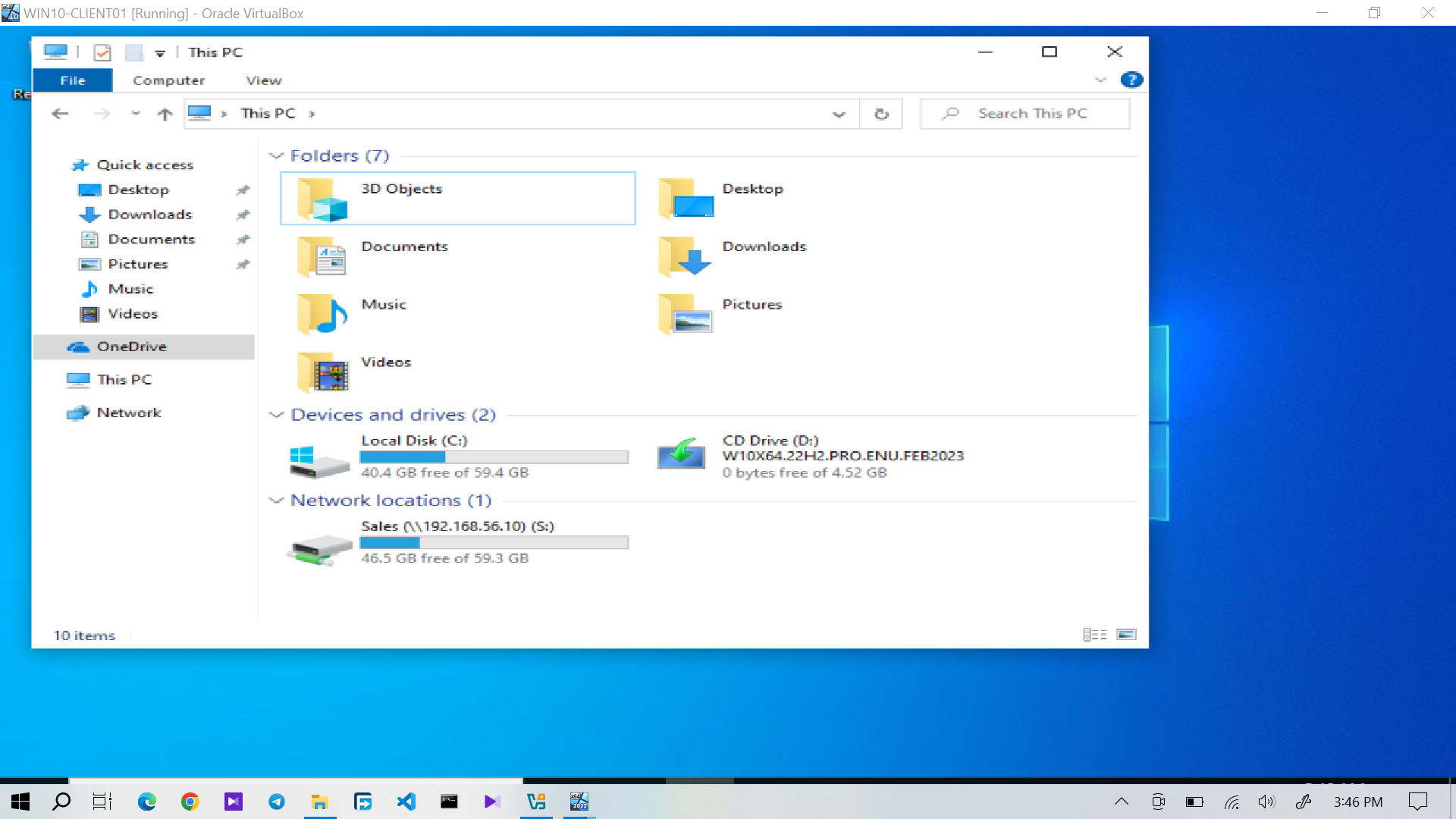
Figure 1: Daniel Carter's Windows workstation showing the Sales resource mapped as the S: drive.
The mapped drive provided direct access to the Sales shared resource from the user's workstation.
Group Membership and Resource Access
Because access to the Sales resource depends on the user's authorization, Active Directory group membership was an important part of the configuration.
Daniel Carter's membership in "GG-Sales" was verified during the lab.
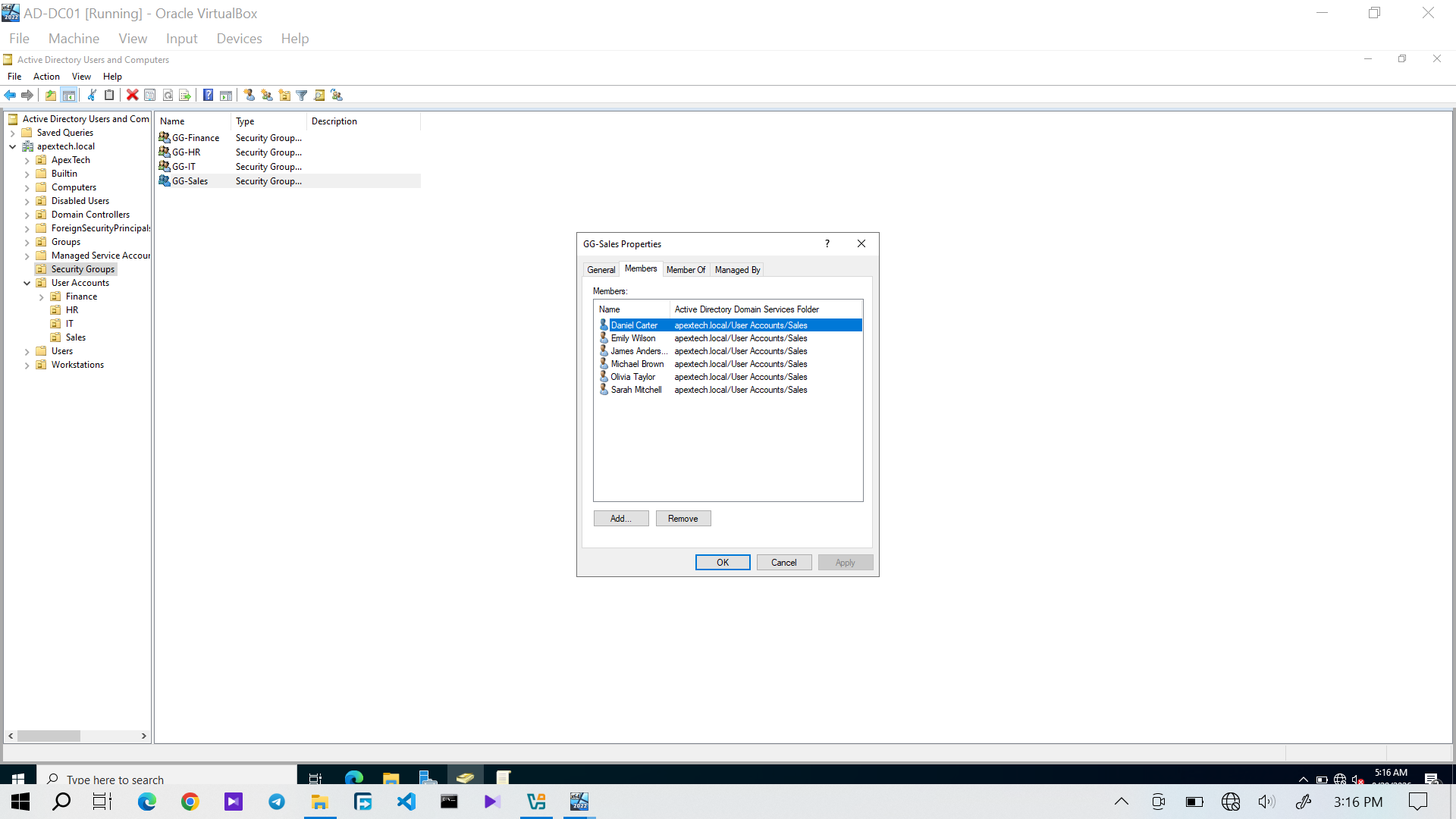
Figure 3: Daniel Carter's membership in "GG-Sales" verified in Active Directory.
The relationship can therefore be represented as:
A change to the user's group membership can consequently affect access to the Sales resource.Troubleshooting Considerations
A missing mapped drive does not necessarily mean that the drive simply needs to be remapped.
Possible causes include:
- Missing or incorrect group membership
- Group Policy not applying as expected
- Network connectivity problems
- DNS or domain connectivity problems
- Share availability issues
- Incorrect permissions
- A disconnected network resource
A technician should therefore investigate the underlying cause before applying a workaround.
A practical troubleshooting sequence is:
This troubleshooting approach is applied in Ticket 10 — Missing Sales S: Drive.