Intune Enrollment
Microsoft Intune was used to enroll and manage selected Windows 10 Pro devices within the Apex Services Lab environment.
The enrollment configuration was targeted through the Intune Lab Users security group.
Automatic Enrollment
An Intune automatic-enrollment configuration was created using Microsoft Entra ID.
The Intune Lab Users group was used as the target for Mobile Device Management (MDM) enrollment.
The group contained:
- Emily Carter
- Sarah Johnson
- Daniel Smith
The MAM user scope remained unconfigured for this lab.
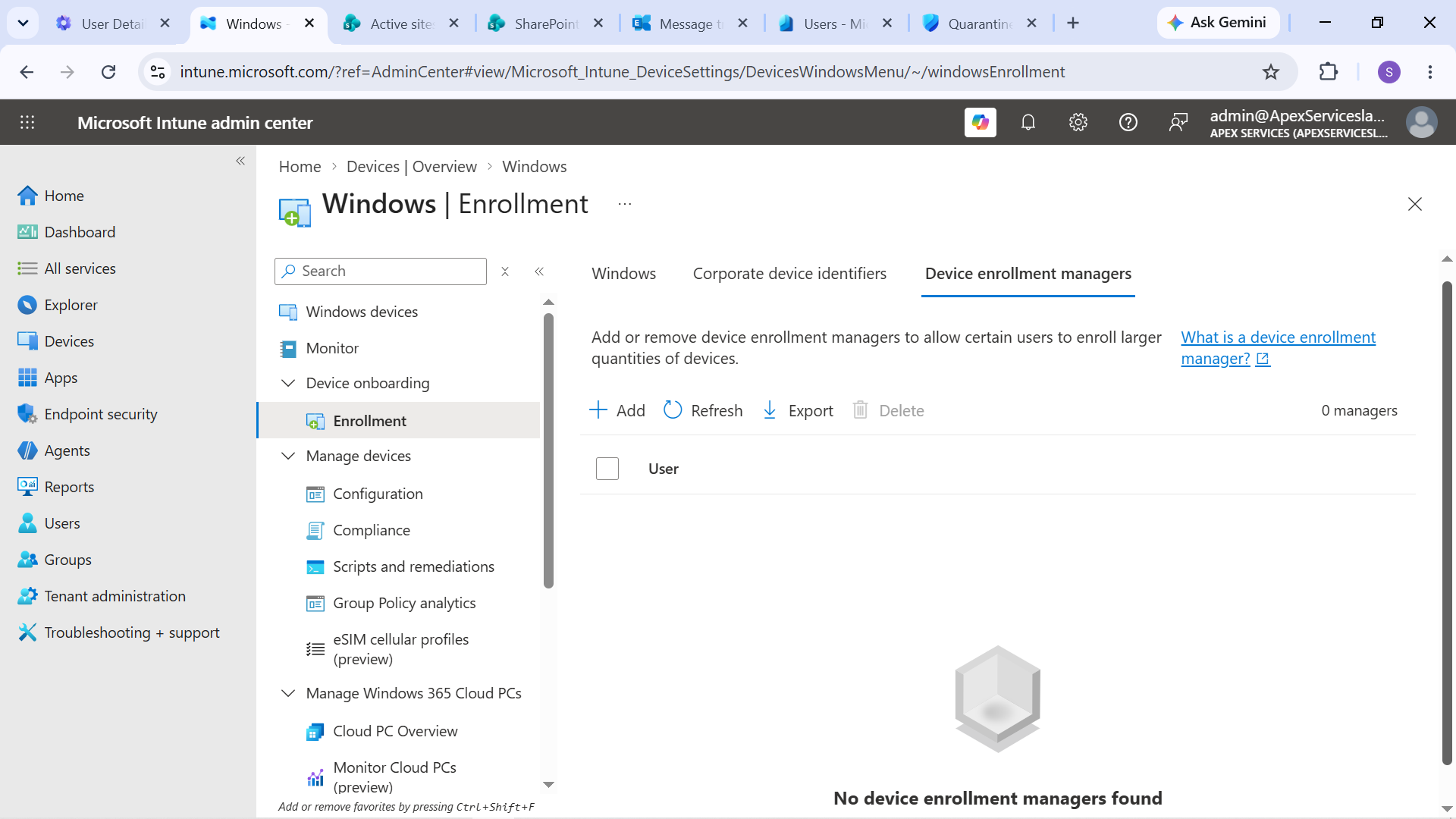
Evidence: Intune Windows enrollment configuration in the Microsoft Intune admin center.
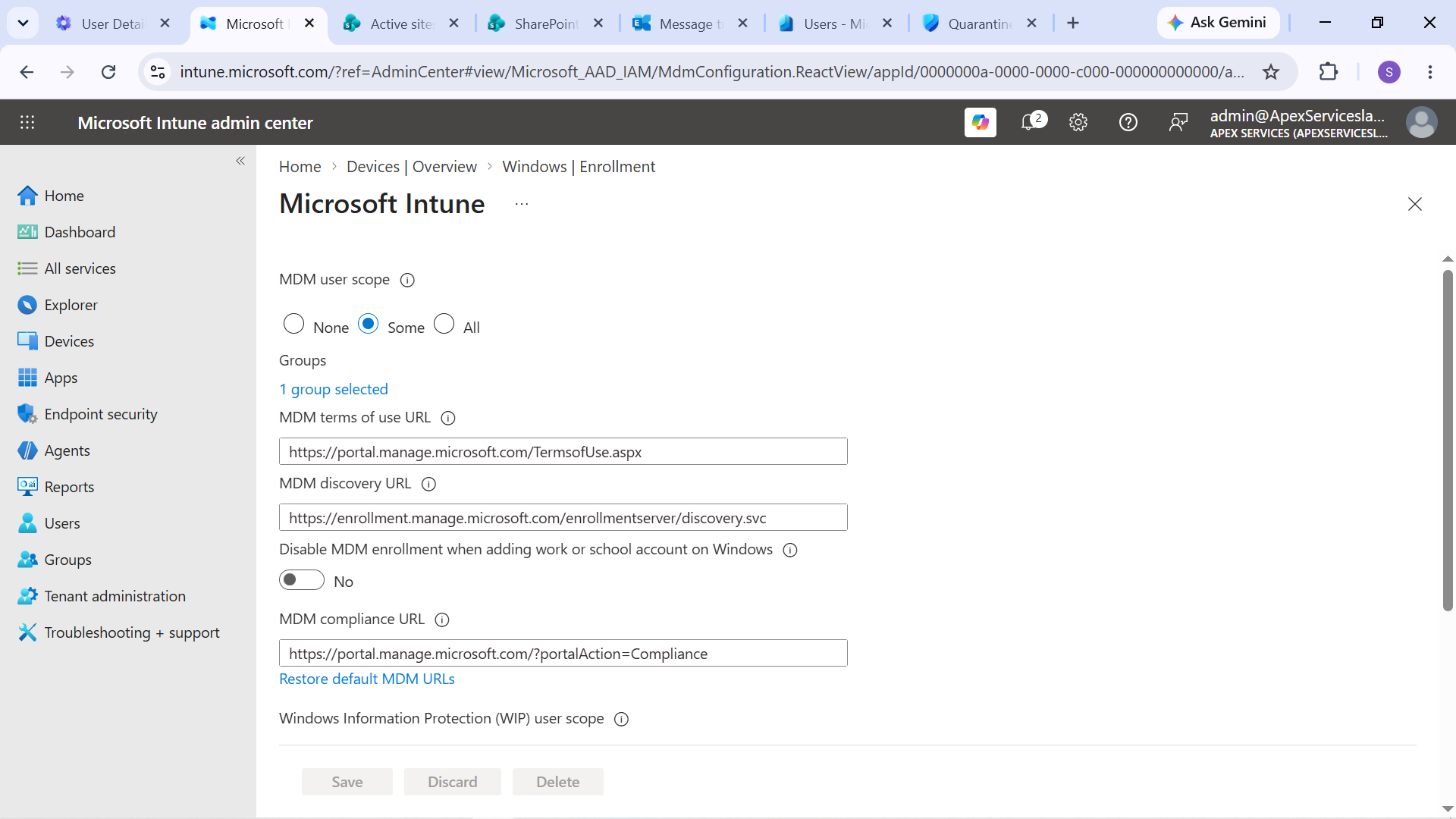
Evidence: Automatic MDM enrollment configured for the Intune Lab Users group.
Emily Carter's Device
A fresh Windows 10 Pro virtual machine was configured for Emily Carter and joined to Microsoft Entra ID.
After the Entra ID join, the device was automatically enrolled into Microsoft Intune.
The Windows device showed the successful join and management configuration.
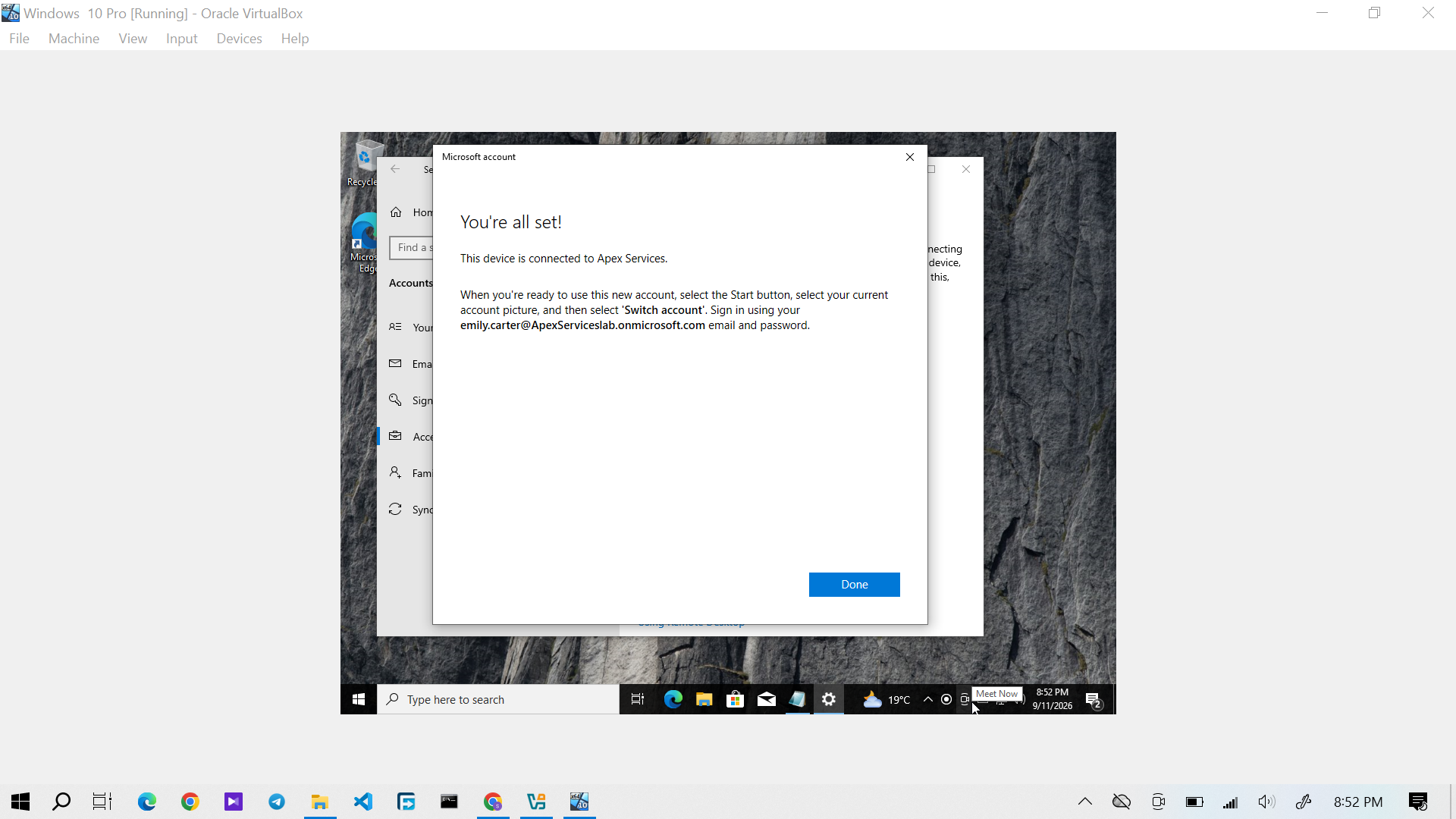
Evidence: Emily Carter's Windows 10 device successfully joined to Microsoft Entra ID.
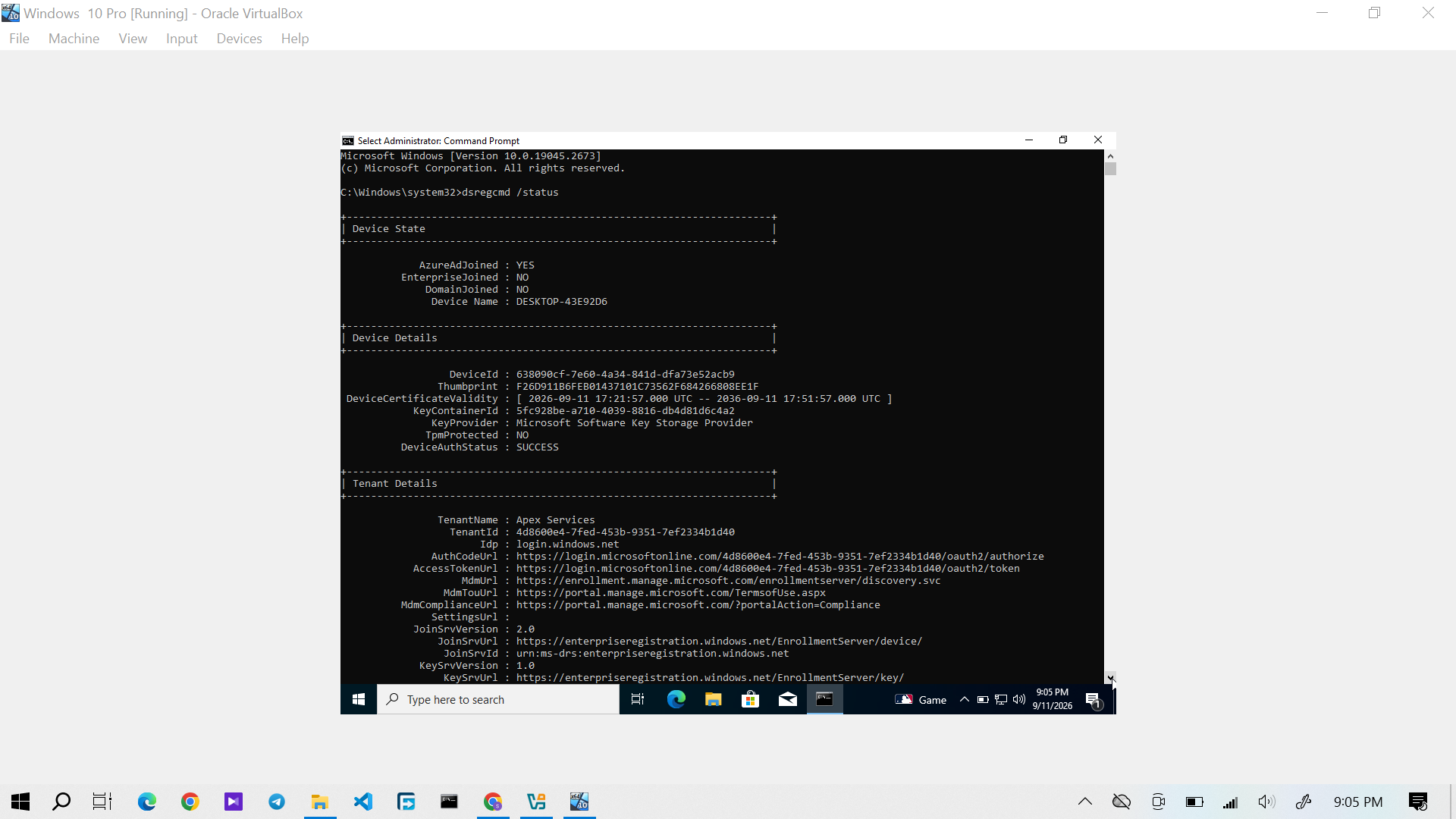
Evidence: Windows 10 device status showing the Microsoft Entra ID join and management information.
The device subsequently appeared as a managed endpoint in Intune.
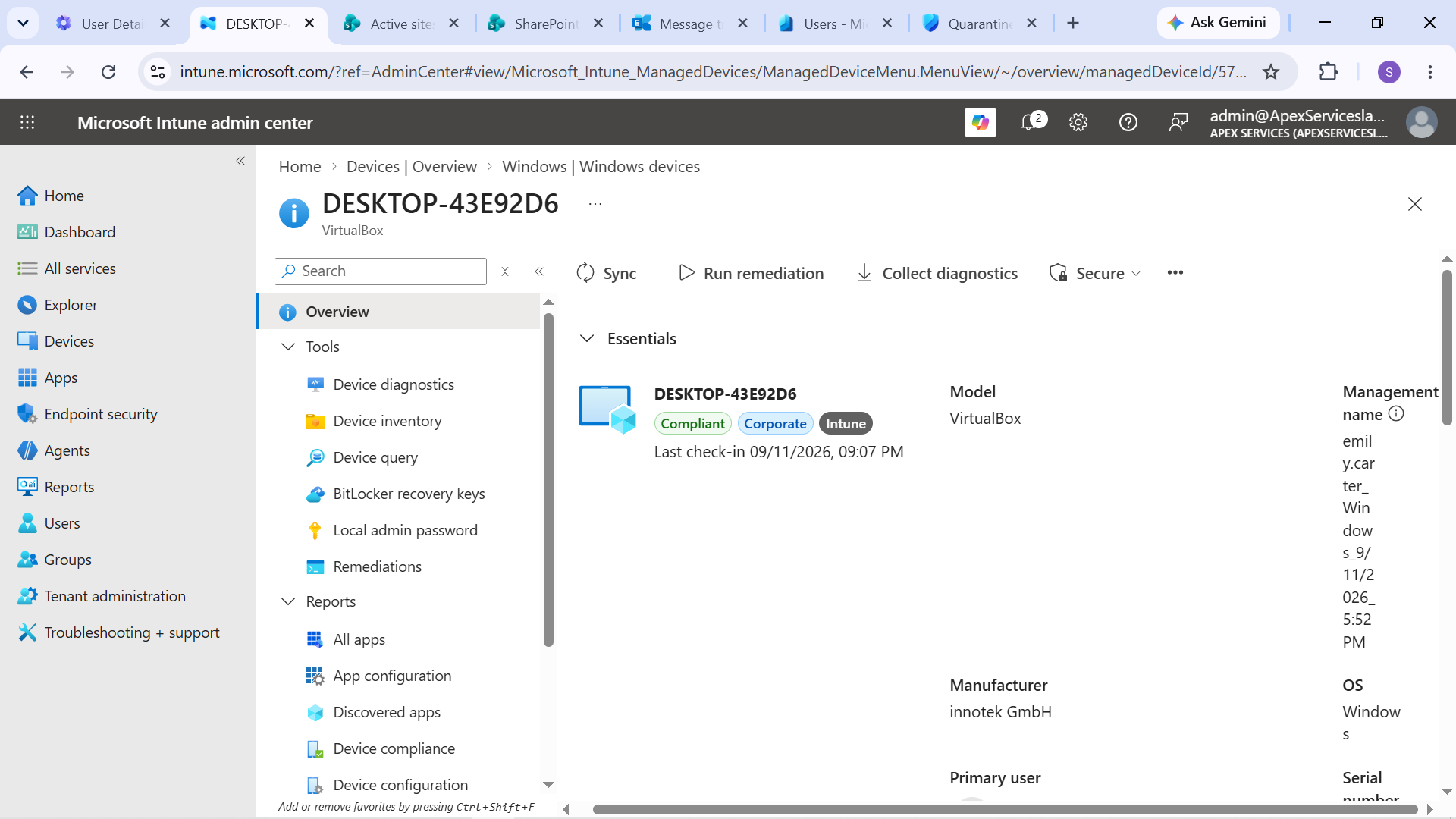
Evidence: Emily Carter's Windows 10 device shown as managed in Intune.
Sarah Johnson's Device
A separate Windows 10 Pro virtual machine was configured for Sarah Johnson.
The device was joined to Microsoft Entra ID and automatically enrolled into Intune using the same enrollment configuration.
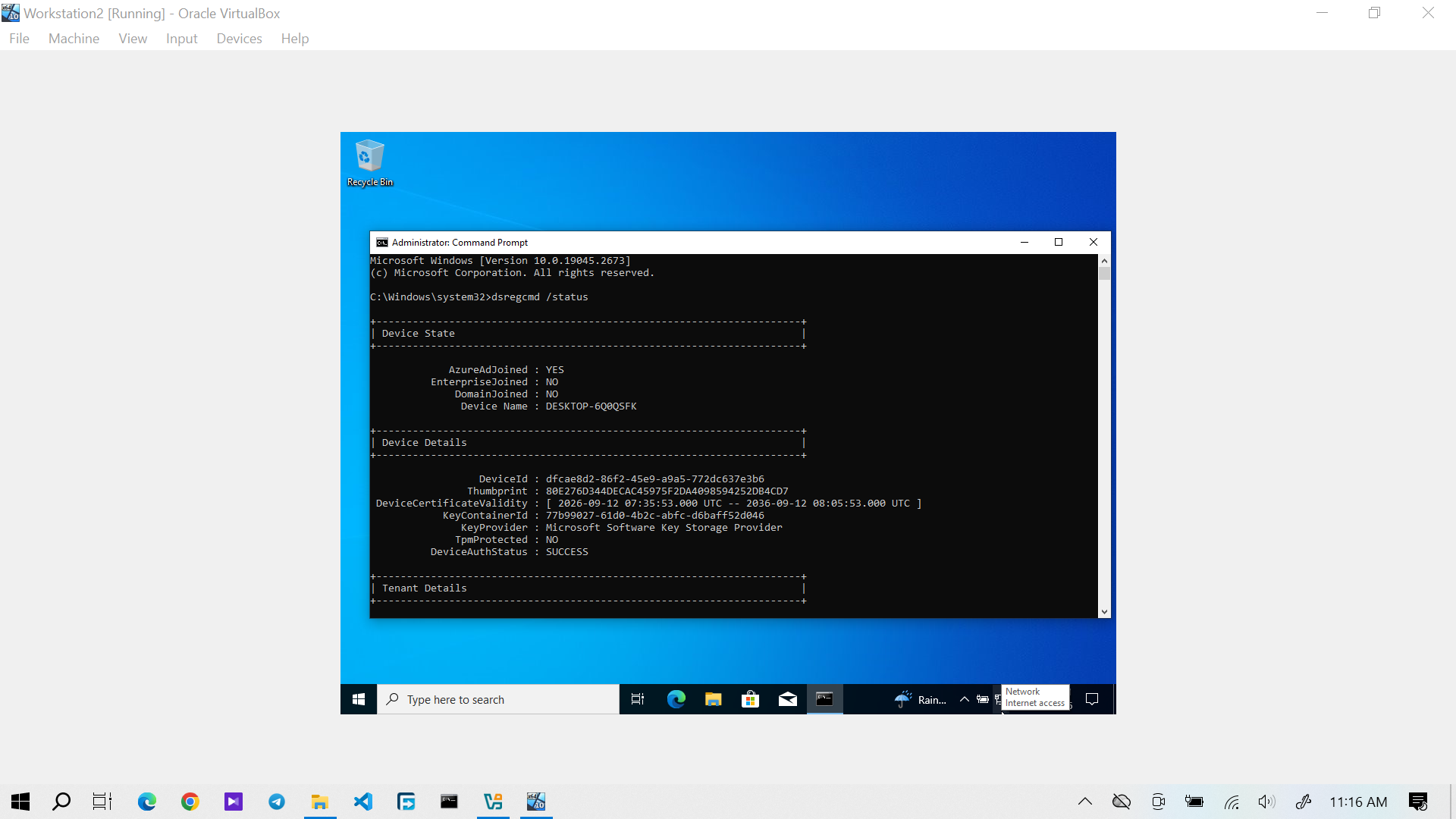
Evidence: Sarah Johnson's Windows 10 device showing its Microsoft Entra ID join and management state.
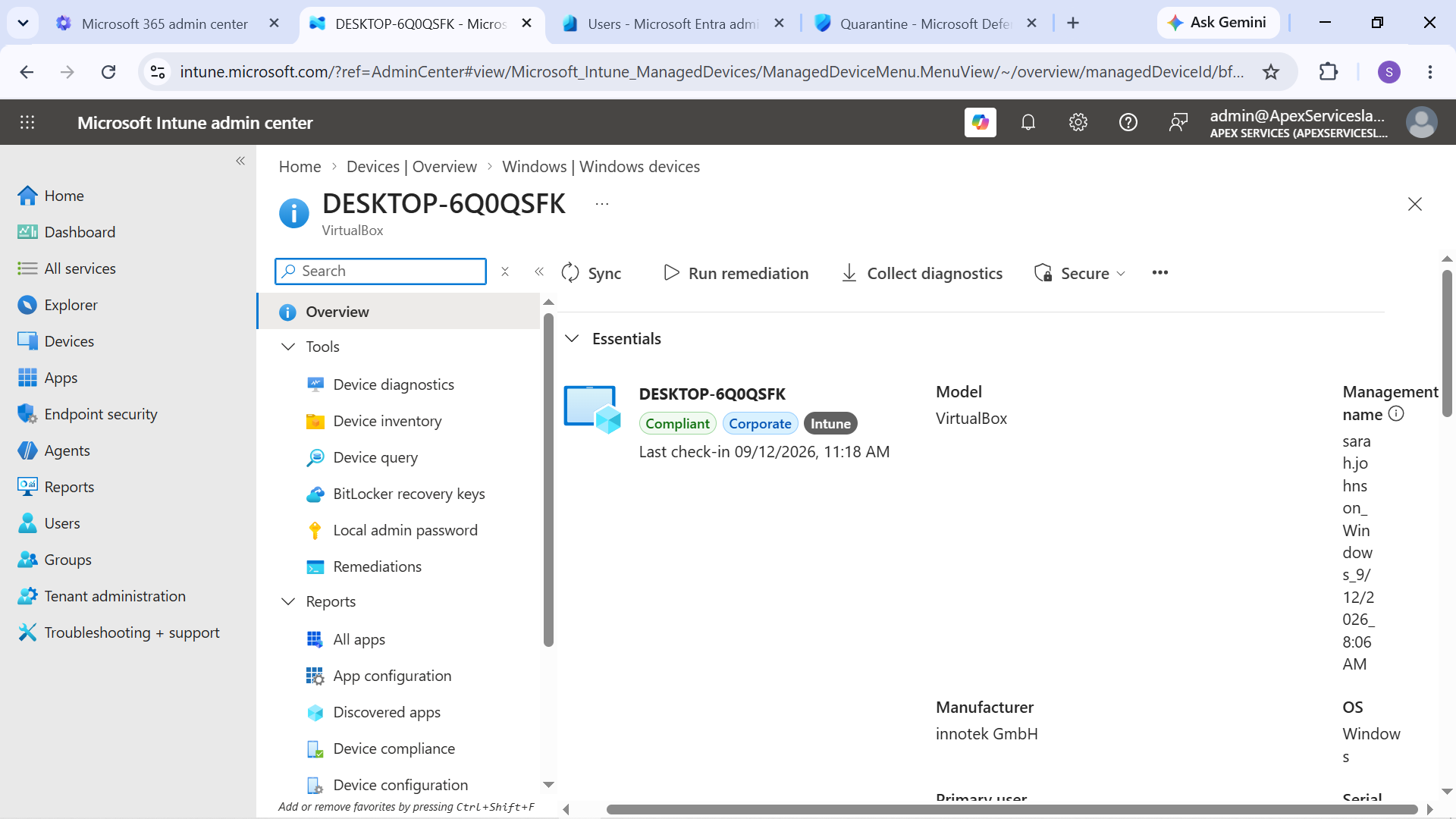
Evidence: Sarah Johnson's Windows 10 device shown as managed in Intune.
Company Portal
Microsoft Company Portal was deployed to the Intune Lab Users group as a required application.
The application was subsequently installed and verified on the managed Windows devices.
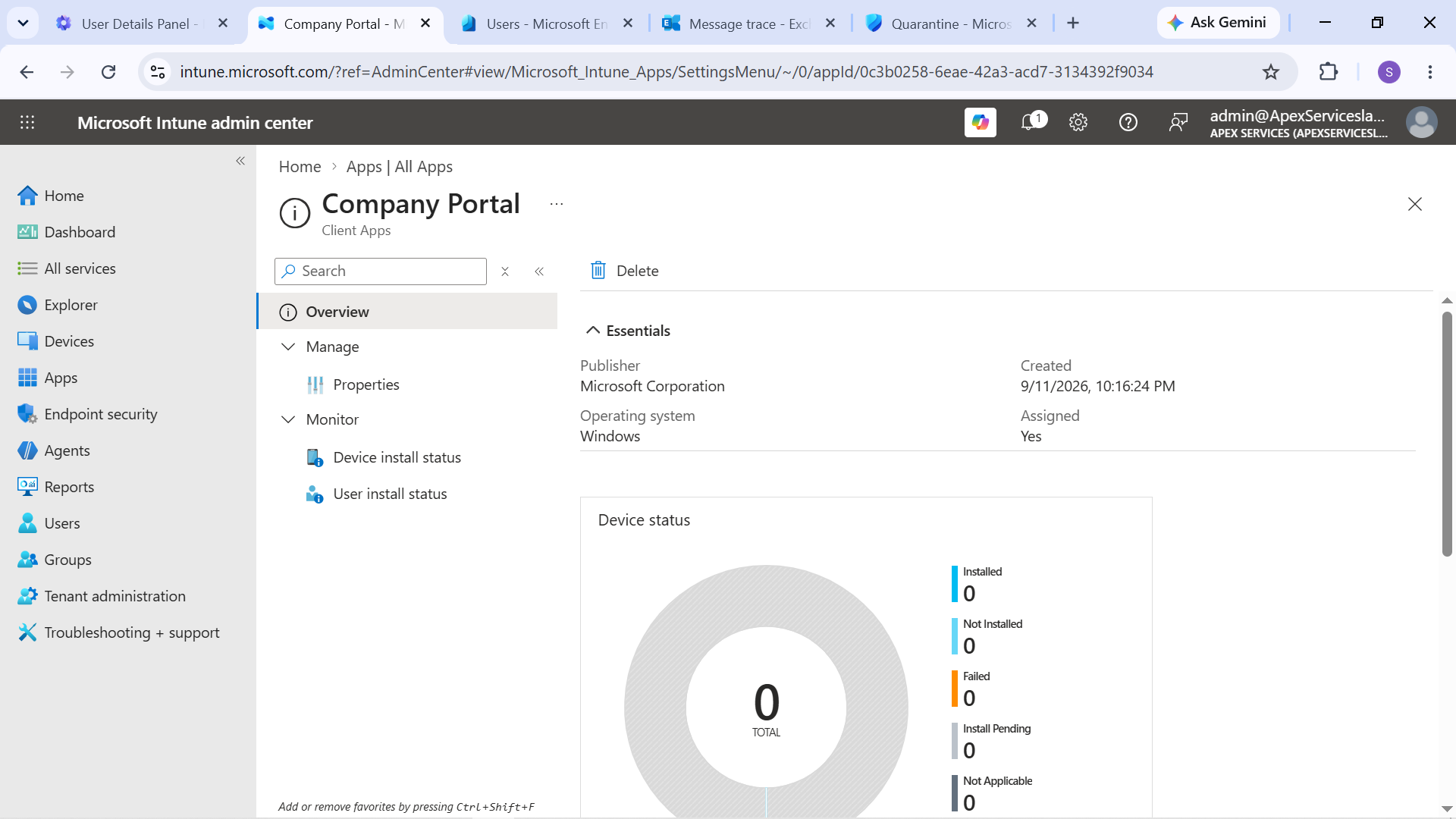
Evidence: Company Portal application deployment configuration in Intune.
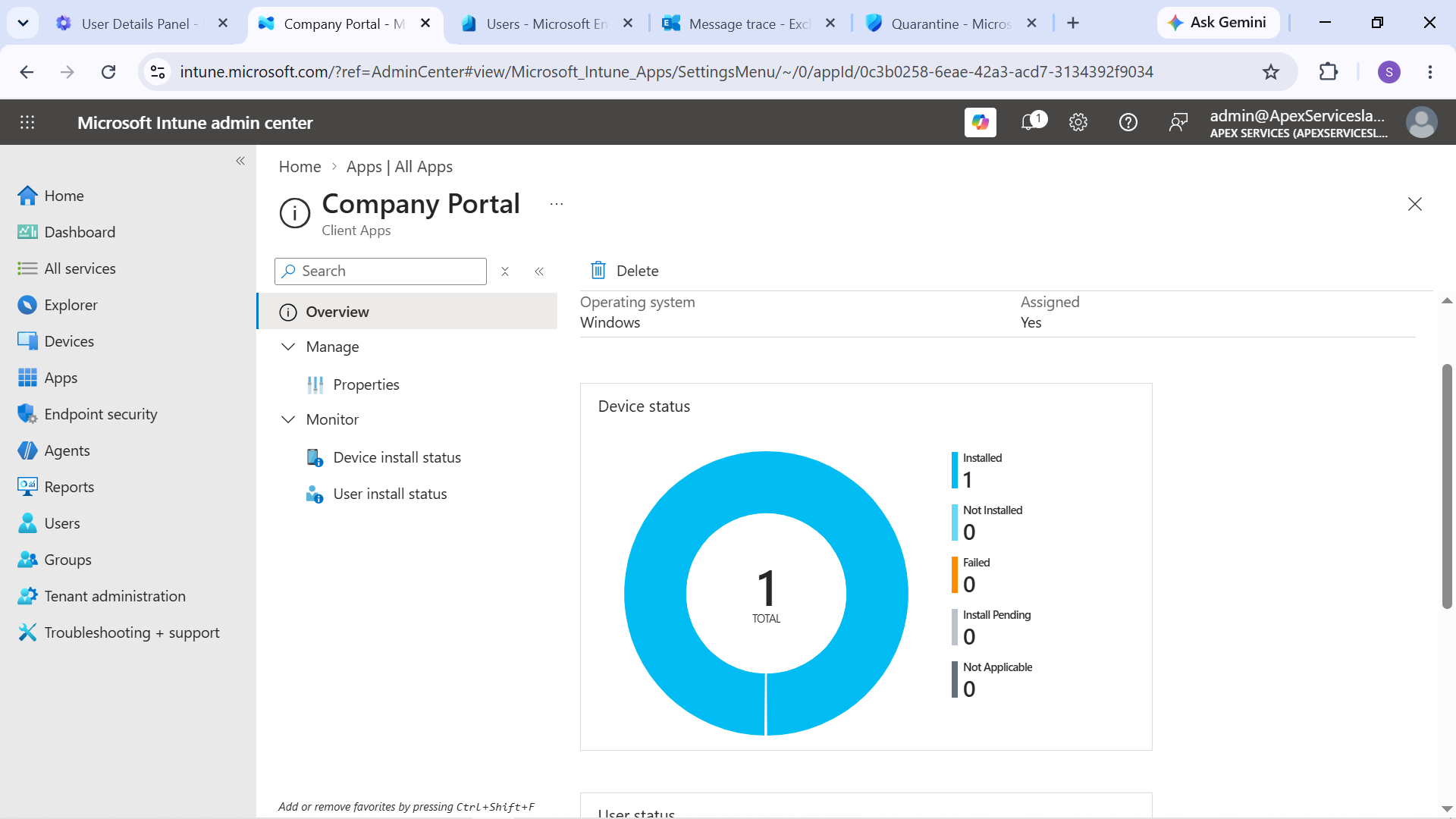
Evidence: Company Portal installed on the managed Windows device.
Sarah Johnson's device was also verified with Company Portal installed.
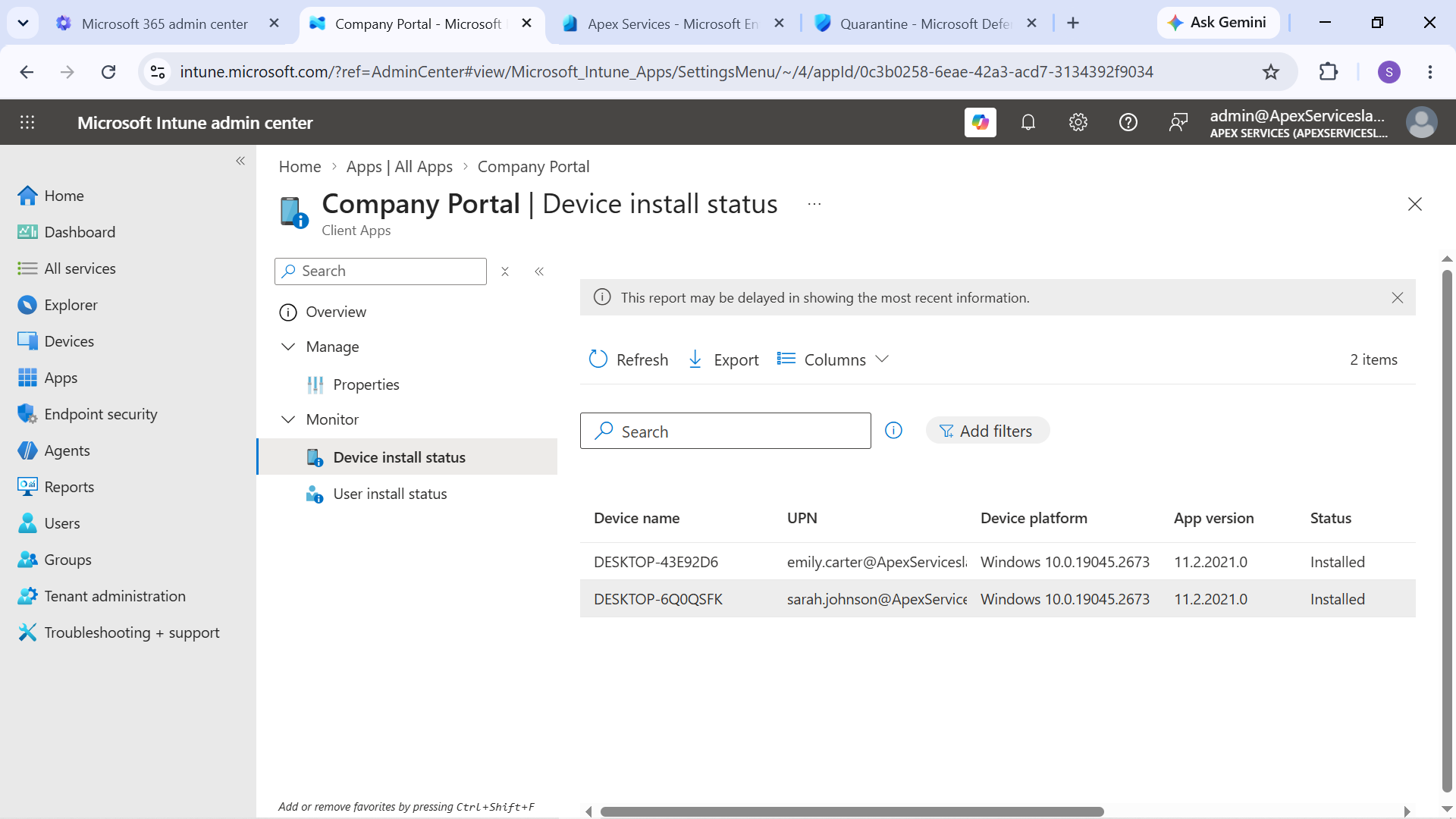
Evidence: Company Portal installed on Sarah Johnson's managed Windows device.
Enrollment Verification
The enrollment process demonstrated the relationship between Microsoft Entra ID and Intune:
Entra ID Join → Automatic Enrollment → Intune Managed Device → Application Deployment
Both Emily Carter and Sarah Johnson were successfully enrolled as managed Windows devices.
Daniel Smith remained in the Intune Lab Users assignment group but was not enrolled as a third managed device.
Support Perspective
From an IT Support perspective, the enrollment process provided hands-on experience with:
- Checking Windows Entra ID join status
- Verifying automatic Intune enrollment
- Identifying managed devices
- Checking device records in Intune
- Verifying application deployment
- Confirming Company Portal installation
These checks provide the foundation for troubleshooting endpoint-management issues.
Verification Workflow
The enrollment workflow was: Configure Enrollment → Join Device → Automatic Enrollment → Verify Management → Deploy Application → Verify Installation
The compliance and configuration policies applied to these managed devices are documented in the next endpoint-management section.